

Prior version of this article first appeared as a guest post for Creators AI.
When Sora 2 launched last month, things got crazy fast.
Within hours, the Sora feed was flooded by videos of Pikachu doing ASMR, dead celebrities brought back to life, and endless memes of Sam Altman.
And sure: Shenanigans can be fun.
In moderation.
But I always felt that OpenAI’s decision to package Sora 2 inside a “social app for AI slop” did a disservice to the model’s potential.
So I want to rectify things by sharing a few hands-on use cases that aren’t all “[meme] but with [person’s face].”
Let’s look at Sora’s image-to-video feature and cool practical stuff you can do with it.
Buckle up!
Signing up for and using Sora 2
Sora 2 is available only in a few select countries, but you can easily circumvent this with a VPN. (That’s how I get to use Sora 2 while in Denmark.)
I wrote more about signing up and using Sora here.
How to use the image-to-video feature?
Note: While you can also access Sora 2 via API or third-party platforms, I’ll focus on OpenAI’s primary sora.com web option for this guide.
In addition to basic text-to-video prompting, Sora lets you upload a reference image.
Simply click the “+” icon at the bottom-left of the prompt input field:

You can then upload an image1 from your computer and combine it with an optional text prompt to describe the action:
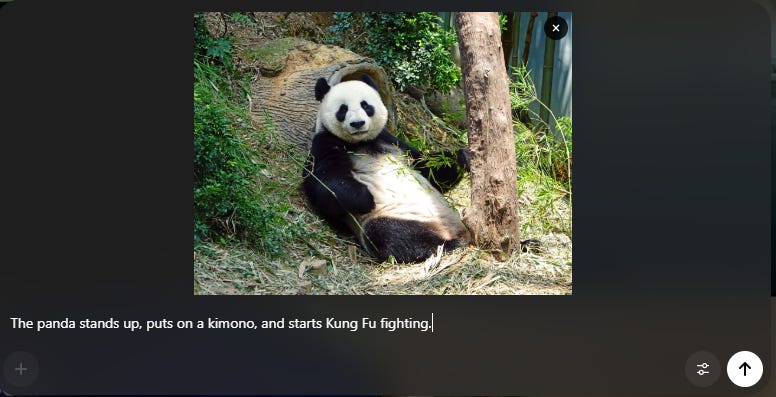
Sora 2 will create a video from your image+prompt combo, with occasionally mixed results:
(Yes, most kung-fu experts don’t know how to dress themselves.)
What can you do with Sora image-to-video?
This seemingly simple concept of combining a reference image with a text prompt lets you use Sora 2 for all kinds of practical applications. For instance:
1. First frame of a scene
This is the “vanilla” use case. You feed Sora 2 an image to use as the starting frame, then describe what should happen from that exact moment. See my panda example above.
Pro tip: Try adding scene directions and annotations directly to the image. Sora 2 will usually parse those and act accordingly:
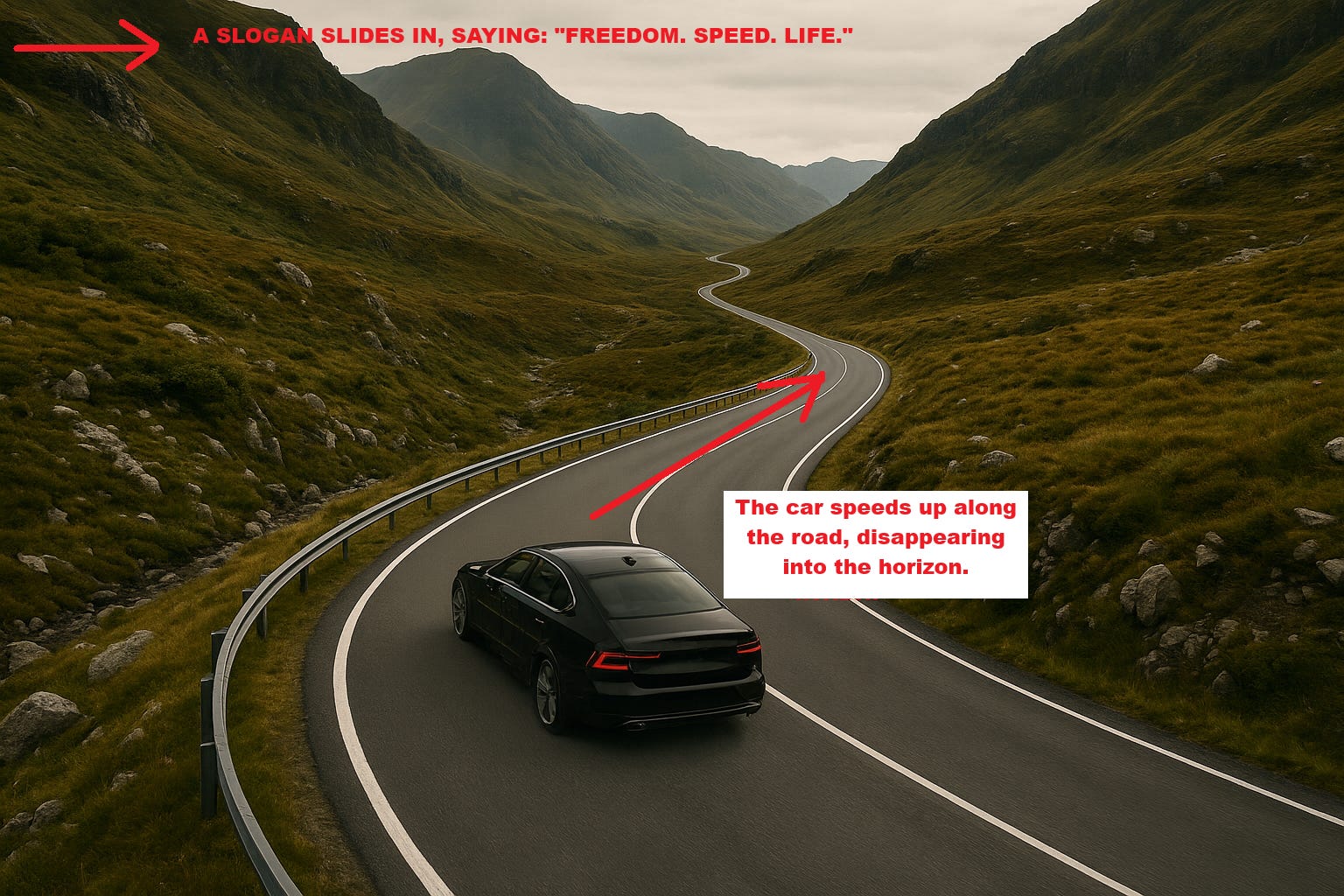
Here’s the first-take result as a proof of concept:
Practical applications: Any scenario where you need full compositional control over the scene. Since your image acts as the starting frame, Sora 2 will respect the visual style and placement of all the objects and characters.
2. Character consistency across clips
You can also use an image of a character to insert them into any scene. This helps keep the character consistent across separate Sora 2 generations.
I recommend using a full-body character shot against a clean background and prompting Sora 2 heavily in terms of the scene and setting2:
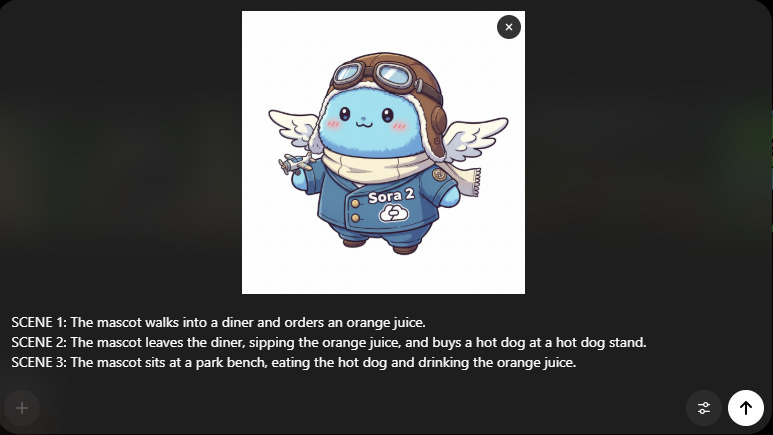
Here’s the result:
Practical applications: Multi-scene storytelling, like ads with brand mascots in different life situations, explainer videos with fixed characters, and so on.
3. Scene setting
Images of locations or settings can be used as establishing shots without you having to describe the surroundings in great detail.
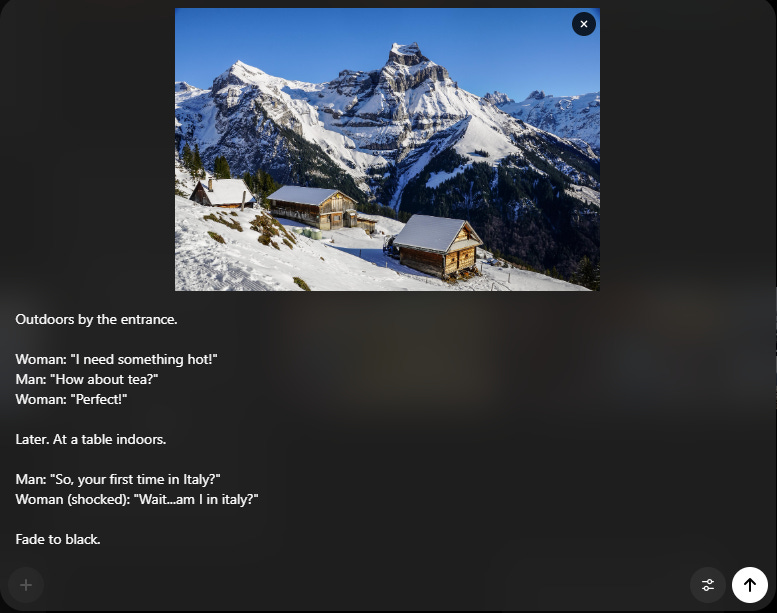
Result:
(Apart from the misattributed “Perfect,” this is…perfect.)
Practical applications: Travel ads, brand videos focused on a geographical location, a specific building, and so on.
4. Object or item reference
Just as with consistent characters, you can use image-to-video prompting in Sora 2 to insert a given item or product into your video clip:
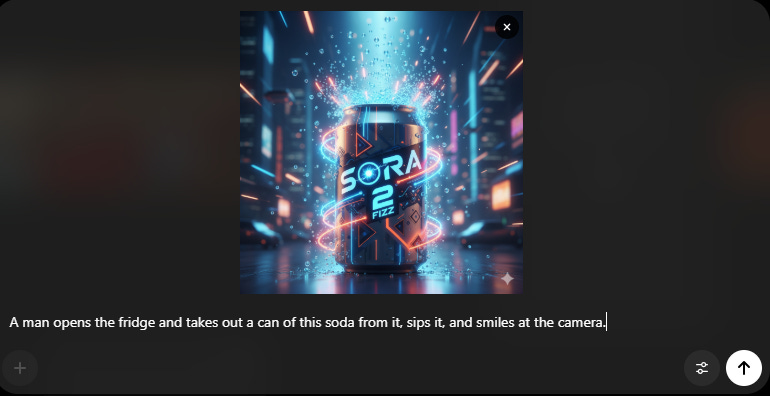
Result:
Practical applications: Product demos, UGC ads for social media, product placement in video clips, etc.
5. Pose reference
Image-to-video can also help you define the character’s poses and camera angles for the scene via a sketch.
Pro tip: Try a third-party tool like SetPose or JustSketchMe, or ask for a sketch in an image generator.
When using this approach, make your sketch as style-neutral as possible (e.g. stick figures) and describe the desired look/aesthetic in detail.
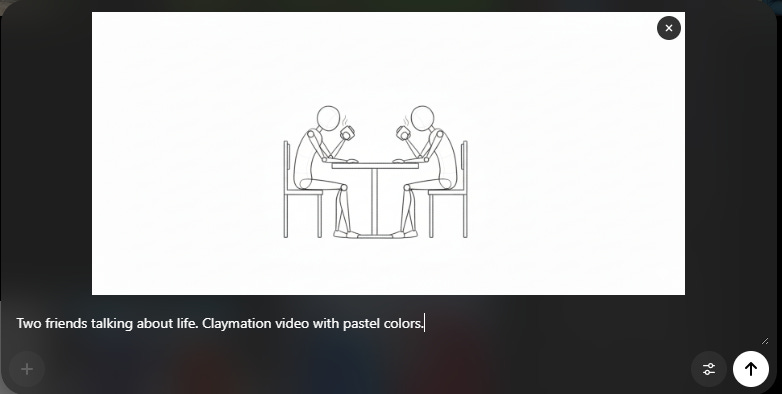
Result:
Practical applications: Whenever posing a character is important, such as fitness app demos, instructional videos, yoga class promotion, and so on.
6. Multi-panel storyboarding
Sora 2 can also parse a visual storyboard with several connected scenes.
Use this to prompt an entire storyline from a grid of images:
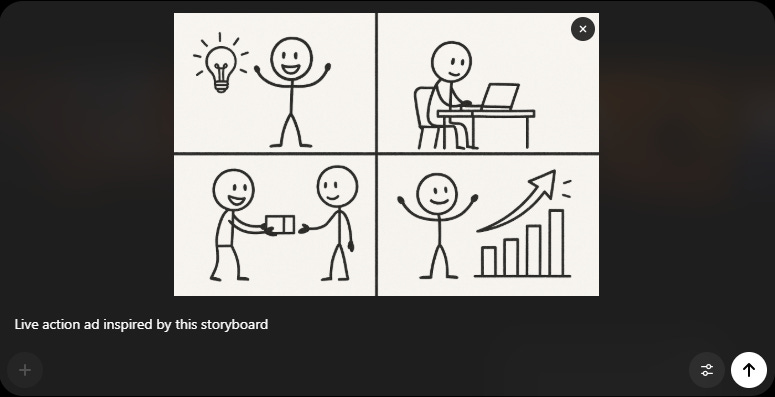
Result:
Note: I find that Sora 2 struggles if you use more than 6 panels in your storyboard. The sweet spot is somewhere around 4 panels.
Practical applications: Narrative ads with e.g. a “problem, solution, outcome” storyline.
Limitations & workarounds
Sora 2 can be quite impressive, but it’s far from perfect.
You’ll run into certain limitations. Here are five of them and potential fixes.
1. Can’t use photos of people
OpenAI’s current policies are pretty strict when it comes to using photos of people as input images. (Unless you use the dedicated “Cameo” feature to add yourself officially.)
If you try uploading an image with realistic people in it, you’ll run into the following error:

This is a bummer if you want to include a resemblance to a specific person in your videos.
Workaround:
I propose two possible solutions.
First, if your video doesn’t have to be a live-action take, you can first convert the photo into a stylized cartoon, flat illustration, anime, etc., using a third-party image model like Nano Banana. Sora 2 is far more likely to accept non-photographic images of people.
Two, if you really want a realistic video, you can feed your photo to an AI chatbot like ChatGPT and ask for a thorough description of the person, down to minute details. Then you can include this character description in your Sora 2 text prompt and see how close it gets.
2. Limited to 15-second videos
When Sora 2 first launched, it created 10-second clips, which was then bumped up to 15 seconds.
But what if you want a longer shot?
Workaround:
You can use the last frame of a Sora 2 generation as the input image (first frame) for a new video.
Simply export your first Sora 2 clip into any video editing tool, save the last frame as a standalone image, upload it to Sora, and describe what should happen.
Later, you can stitch the clips together into a longer video.
3. Sora watermark
Sora 2 automatically embeds a floating watermark into its videos, which can be quite intrusive in some cases.
Workaround:
Certain watermark removers do a passable job of blurring out the watermark, but this might put you in breach of OpenAI’s policies, depending on your use case and intentions.
A safer bet is to avoid visible watermarks in the first place by using Sora 2 via API or a third-party platform like Higgsfield.
4. Sora sticks too closely to the uploaded image style
When using a reference image for a character or pose, Sora 2 may inadvertently borrow its style elements for the video, even if you’re prompting for a different aesthetic.
Workaround:
I suggest using style-neutral reference images like stick figures as I did above.
If all else fails, try first feeding your reference image to an image editor like Nano Banana and asking for it to be converted into your chosen style. Then, use the resulting image as the first frame of your Sora 2 video.
5. Limited to just one image at a time
Unlike some other platforms where you can upload multiple reference images, Sora 2 only lets you upload a single image at a time.
Workaround:
Try to combine multiple visual references into a single collage and work them into the scene using the text prompt:
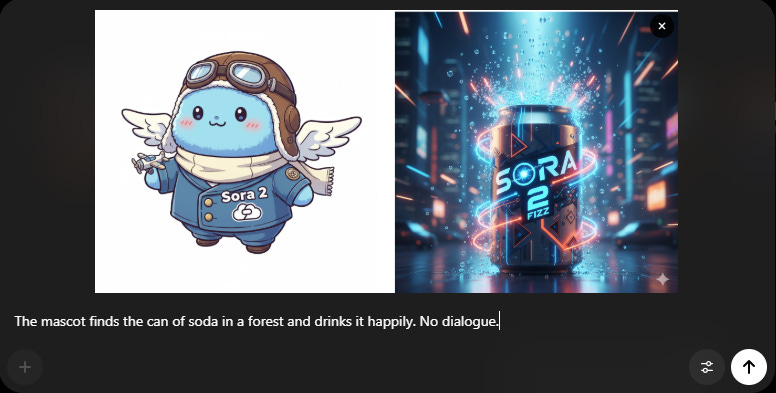
Result:
Wrap up
As you can see, Sora 2 can be more than just a silly meme generator.
Image-to-video seems simple, but it’s versatile enough for many use cases.
What will you create?
🫵 Over to you…
Have you tried using reference images in Sora 2 or another image-to-video tool? Do you know some other practical tips for Sora?
Leave a comment or drop me a line at whytryai@substack.com.
Thanks for reading!
If you enjoy my writing, here’s how you can help:
❤️Like this post if it resonates with you.
🔄Share it to help others discover this newsletter.
🗣️Comment below—I love hearing your opinions.
Why Try AI is a passion project, and I’m grateful to those who help keep it going. If you’d like to support my work and unlock cool perks, consider a paid subscription:
All demo images in this article are sourced from Pixabay.com or generated by Nano Banana.
Note that the uploaded image will always be the first frame of the resulting video, even when used for other purposes. You can easily remove the frame in any third-party video editing tool.