

Paid subscriber bonus: Grab the Claude Code Essentials pack with self-building skills, customizable workflows, and copy-paste starter prompts.
It seems y’all really enjoyed last week’s intro to Claude Code for non-coders:

The post got dozens of shares and brought in almost 70 new subscribers.
In it, I asked what else you’d like to learn about Claude Code. Here’s what you told me:
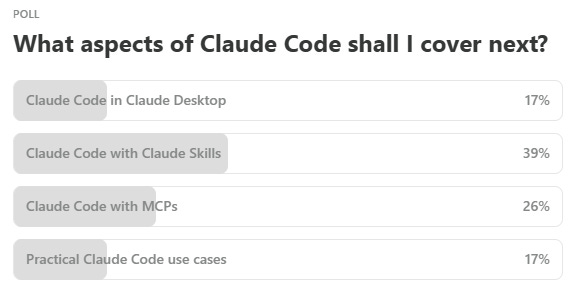
Claude Skills and the Model Context Protocol won.
So I figured I’d tackle them in the same post, since they’re often better together.
As a bonus, I’ll also show you how to run Claude Code inside an IDE like Cursor or VS Code, which offers a more visual way to work.
Don’t worry, none of this is particularly difficult.
You already have Claude Code installed, so the tricky(ish) part is behind you.
Click on the section you’re interested in to magically teleport straight to it:
Let’s roll!
Claude Code Series
Check out my previous Claude Code articles to learn how to:
Set up and use an IDE, Skills, and MCPs with Claude Code (this)
Identify what Claude Code can help you with (and know how to ask for it)
Use Claude Code with Obsidian to set up your personal knowledge base
Test & improve Claude Code skills with Skill Creator and my “Eval Maker”
Make Claude Code work with other agents in a shared workspace
Use helpful Claude Desktop features in your Claude Code workflows
1. Using Claude in an IDE
Note: You’ll see me paste screenshots of Cursor and VS Code interchangeably, since I tested both of them and their interface is very similar. I’m fickle like that.
Last time, we got Claude Code running in your computer terminal’s super sexy command-line interface (CLI):

CLI is minimalist, efficient, and great if you’re a programmer who’s used to it.
But if you’re like me, you’re dazzlingly handsome and smart you prefer being able to see more stuff at a glance, especially when working with multiple files and folders.
That’s exactly where an IDE like VS Code or Cursor comes in.
What the heck is an IDE?
IDE stands for integrated development environment, because it pulls separate tools a developer might need into a single unified workspace.
But don’t let the dry name put you off.
You don’t have to be a developer to appreciate the benefits.
Compared to your terminal, an IDE offers:
Easier navigation: A separate pane lets you view and switch between folders just like you would in a regular file explorer.
Visual editing: You can see and edit the content of individual files directly.
In-context chat: You can highlight sections of a document and chat to Claude Code about specifically those highlights, providing Claude with better context.
Change tracking: When Claude suggests edits, you’ll see exactly what’s about to change, helping you make more informed decisions.
Sound good?
How to run Claude Code in Cursor or VS Code
There are many IDEs to pick from, but the following are the most widely used1:
Visual Studio Code: an open-source IDE editor that you can upgrade via extensions and other add-ons.
Cursor: basically re-skinned VS Code with built-in AI features.
If you plan to use Claude Code as your primary AI agent and keep things simple, just stick to VS Code.
Whichever one you pick, download and run the relevant installer (see above) to get it running on your system.
Once you do, follow these steps (they’re near-identical in Cursor and VS Code).
1. Install the Claude Code extension
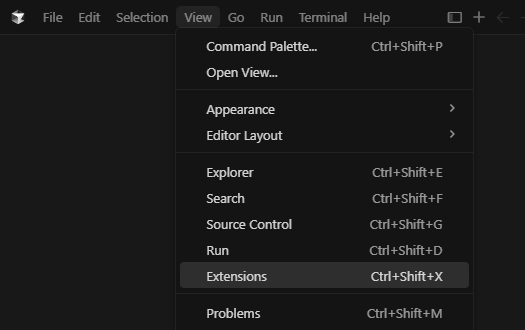
Click “View” in the top menu, then select “Extensions” in the dropdown (or just press “Ctrl+Shift+X" on Windows):
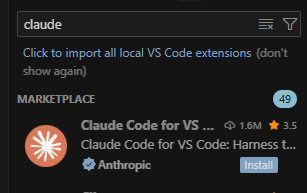
Search for “Claude” until you see the Claude Code for VS Code extension:
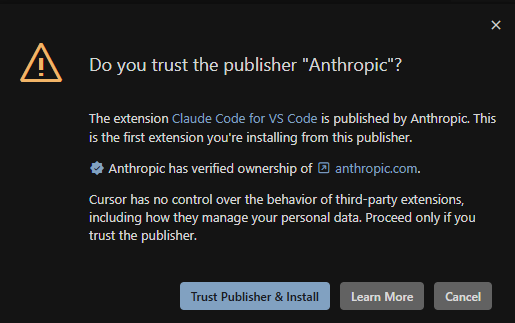
Hit “Install” and select “Trust Publisher & Install” if prompted:
2. Open Claude Code
To open Claude Code inside Cursor, right-click inside an open document and select “Claude Code: Open” from the menu:
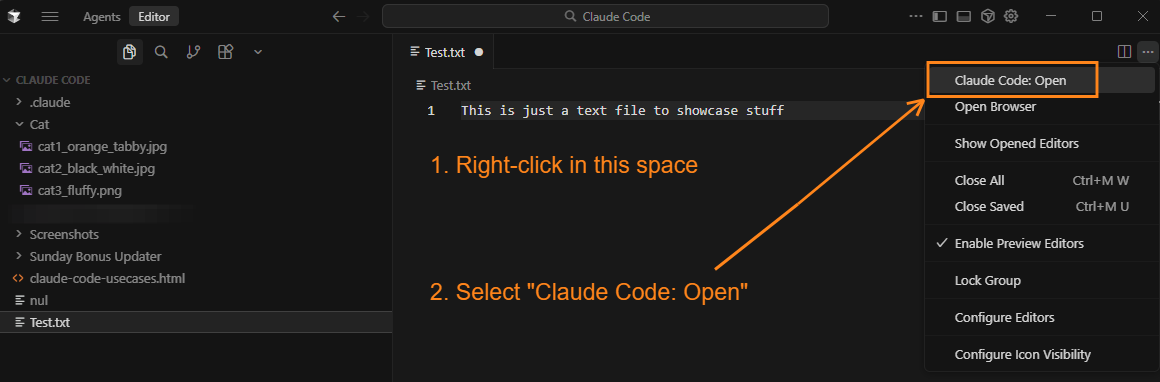
In VS Code, there’s a handy Claude logo to click in the top-right corner instead:

If it’s the first time you do this, you’ll need to log in with your paid Claude subscription or console account:2
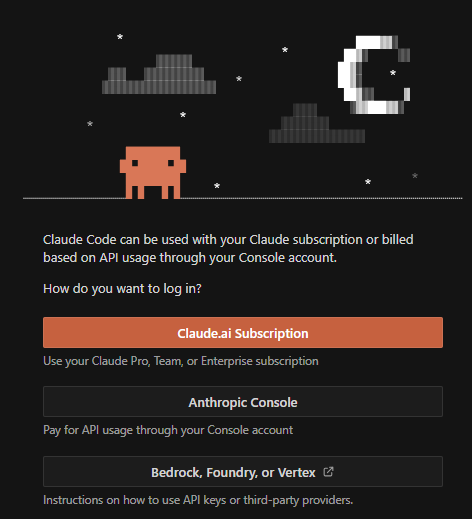
You’re set!
3. Using Claude Code inside the IDE
I prefer to stick to the standard three-column hierarchy:
Explorer for file and folder navigation
Individual file content for hands-on edits
Claude Code chat that lets me ask Claude about stuff
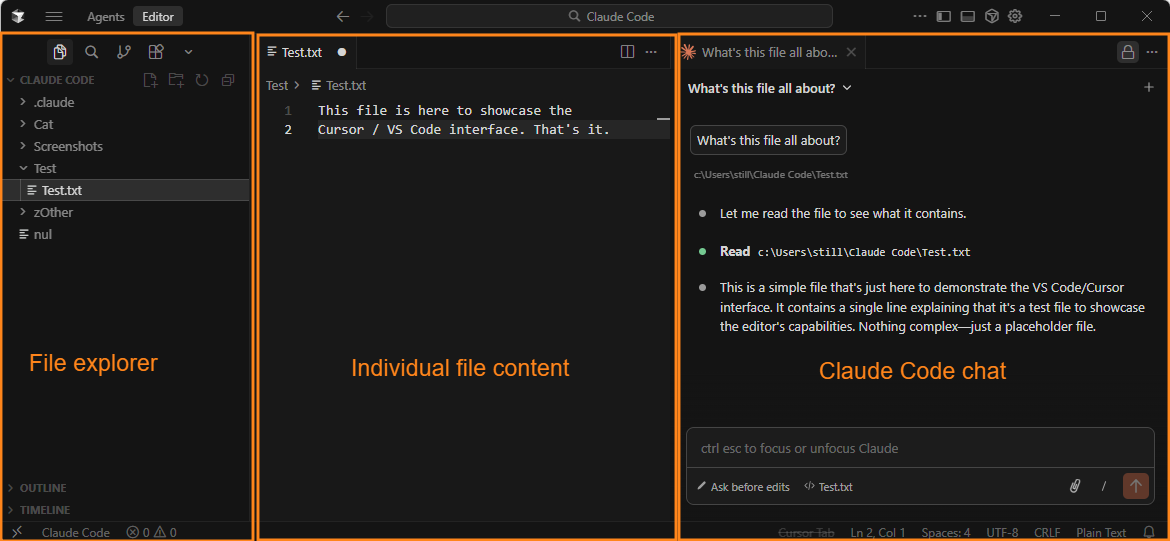
This way, I have an overview of the working folder, the file I’m working on, and I can ask Claude Code to discuss or do stuff without having to switch windows at any point.
To show the power of an IDE, see how I can highlight a single word, and Claude knows exactly what I’m talking about while still understanding the broader context?
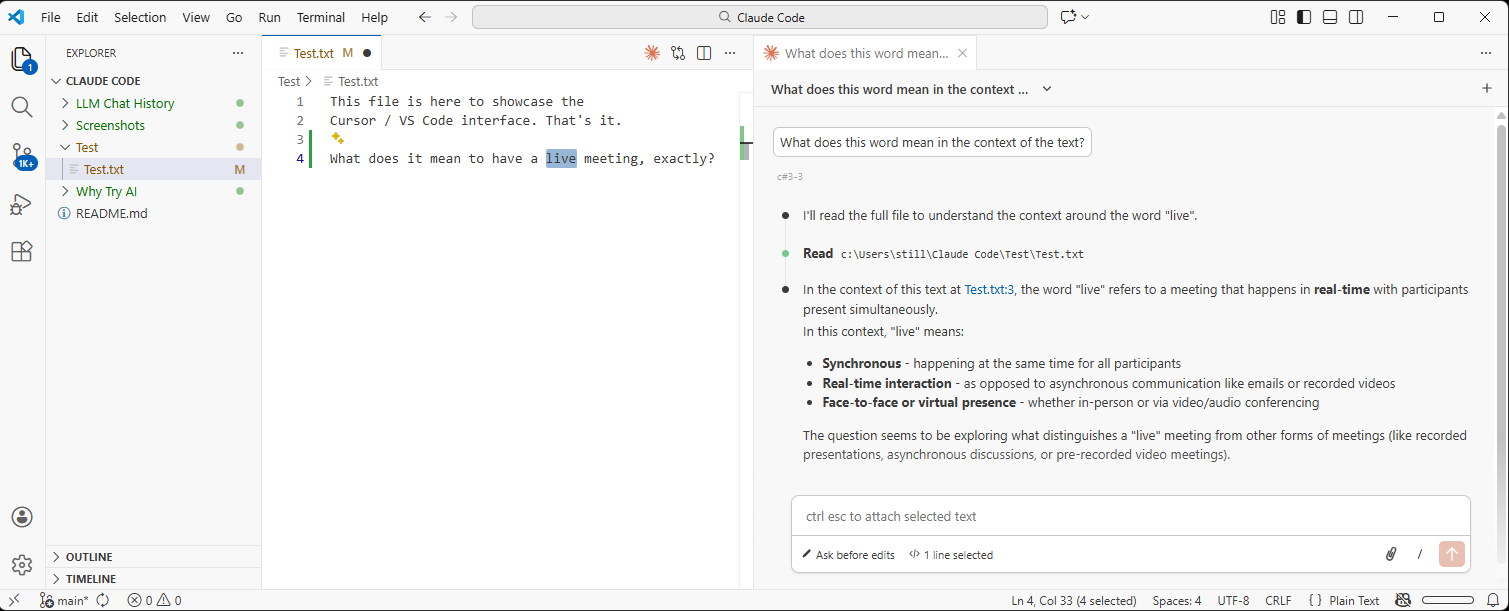
Pretty neat, huh?
2. Using Claude Code with Claude Skills
Now let’s talk about Claude Skills, what they do, and how to use them.
What are Claude Skills?
So, you know how you can create custom GPTs in ChatGPT or Gems in Gemini?
Claude Skills are like that, except it’s Claude who runs them, not you.
Sorry, pal!
Skills are basically custom instructions that tell Claude how to do a specific task and—optionally—provide examples, additional context, or even advanced scripts to run.
They’re specialized recipes Claude can call upon when needed.
Tell Claude to create a slide deck for your brand, and Claude will automatically invoke your custom “Brand Deck” skill that describes your brand’s tone of voice, color palette, and preferred presentation style.
Skills are a great way to standardize repeatable tasks and skip having to explain your requirements to Claude from scratch.
The anatomy of Claude Skills
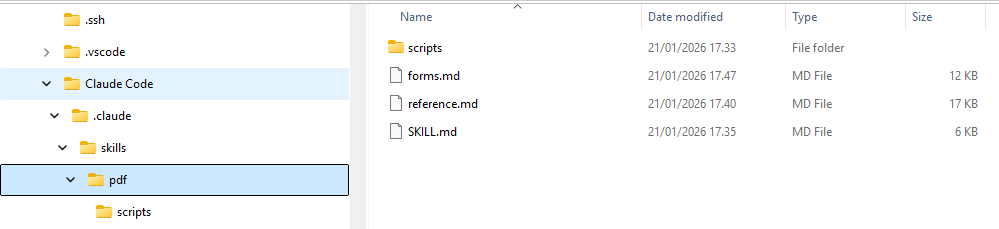
At their core, skills are nothing more than markdown files with instructions that live in their own folder. Drop a skill subfolder into the parent “skills” folder, and you’re all set:
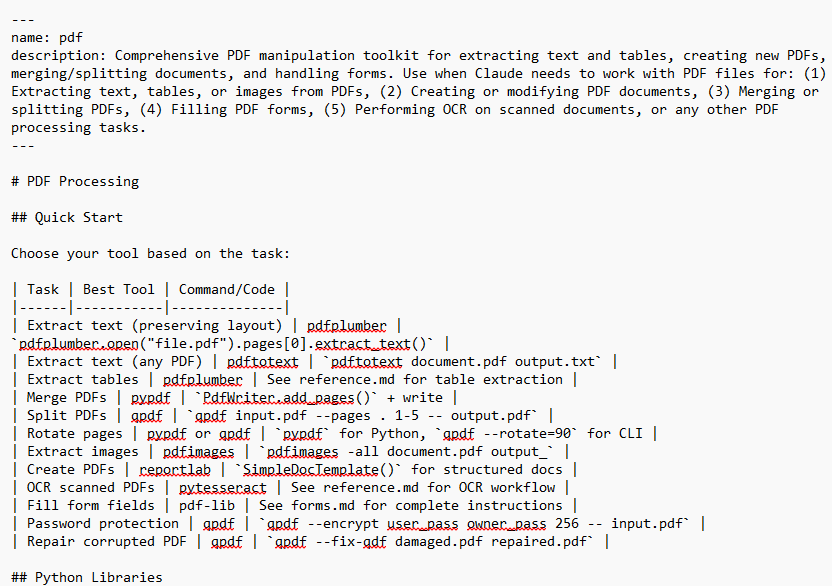
The "SKILL.md” markdown file is the only must-have for a skill to run. It contains all of the instructions in a structured format:
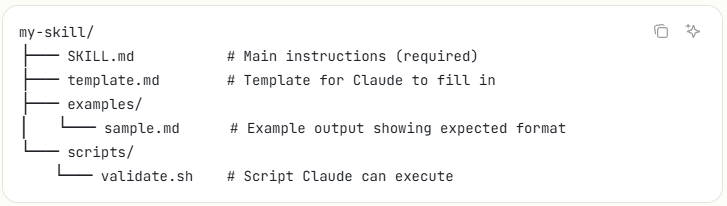
The skill subfolder may also contain examples of acceptable output, specific templates, scripts for Claude to execute, etc. But those are all optional.
With that, let me show you how to set up your very first skill.
The stupid simple way to set up Skills in Claude Code
Now, you could just read the documentation and manually create your skill folders.
But we’re about to get extra lazy up in here.
That’s right: We’ll get Claude Code itself to do everything for us.3
As if that wasn’t lazy enough, the first skill we’ll install is called “Skill Creator,” which teaches Claude Code how to make new skills.
So meta!
Once the Skill Creator is installed, making additional skills will be as easy as asking Claude Code to do it for you.
Open Claude Code within your working folder in your IDE or terminal, and write this:
Please set up a proper Claude folder structure for using Claude Skills, then install the Skill Creator skill: https://github.com/anthropics/skills/tree/main/skills/skill-creator
That’s it.
Yes, really.
I didn’t have any skill folders in place, and that’s all I said to Claude:

Claude Code made a plan…
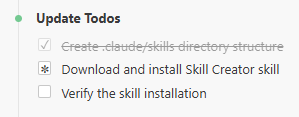
…and kept going until the folder structure and the Skill Creator skill were set up:
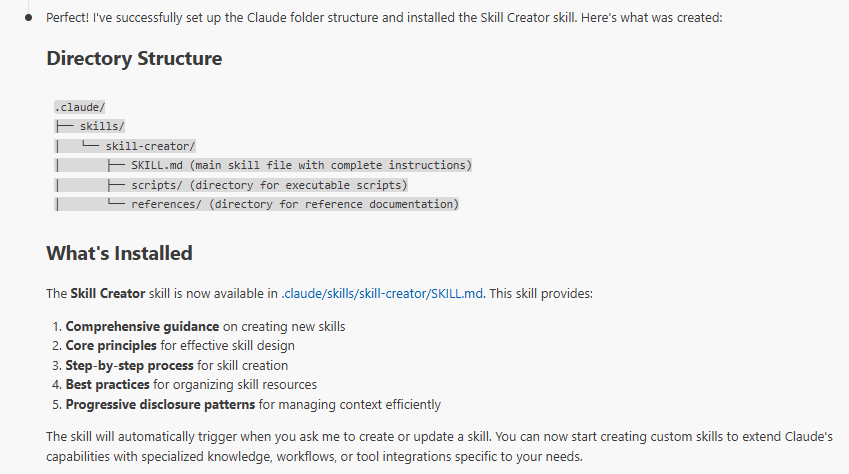
Now it’s time to test our skilled Skill Creator’s skill to make new skills. Skills!
How to use your new Claude Skills
Once the skill is installed, it will always load and be ready to use whenever you run Claude Code.
There are two main ways to use the skill:
Invoke it manually using a slash command
Help Claude Code auto-trigger by providing relevant context
Let’s look at each of them:
Method #1: Slash commands (manual)
If you know which skill you’re after, you can force Claude Code to run it by using “/” followed by the name of the skill:
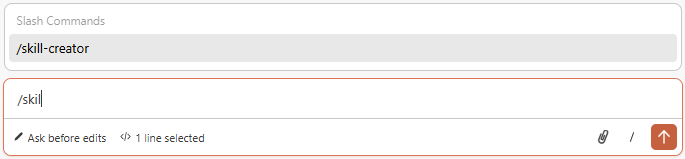
Claude Code will present you with a buffet of options available for that skill:
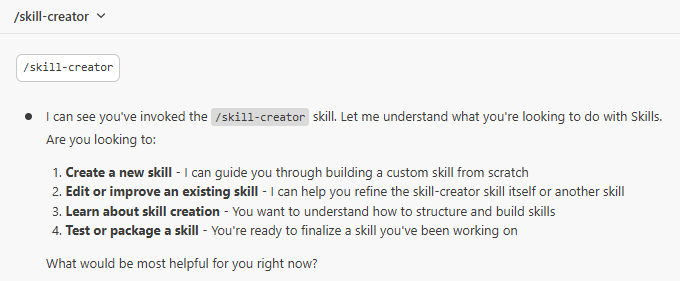
From here, simply answer the questions to move forward.
Method #2: Context (automatic)
But in most cases, you shouldn’t have to manually trigger a skill. Claude Code will know when to invoke it based on context.
For instance, I told Claude Code the following:
I want to create a new skill that automatically turns any uploaded image into a three-haiku mini poem.
Claude Code instantly knew to run the “Skill Creator” skill to help me:
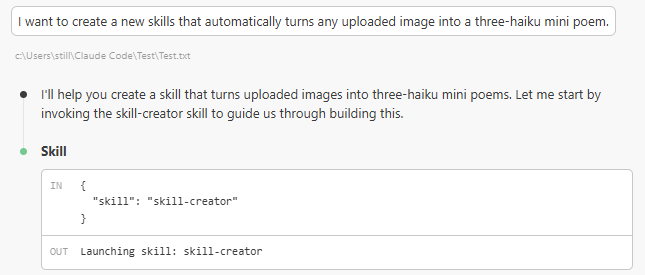
Claude made a plan and asked me clarifying questions along the way:
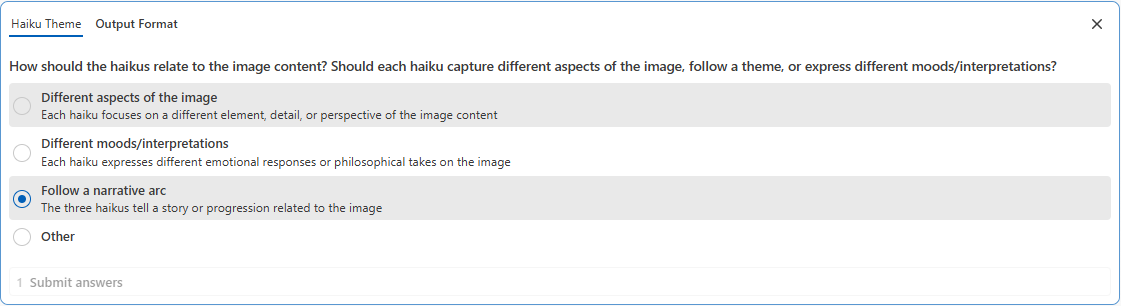
…and kept going until the skill was ready:
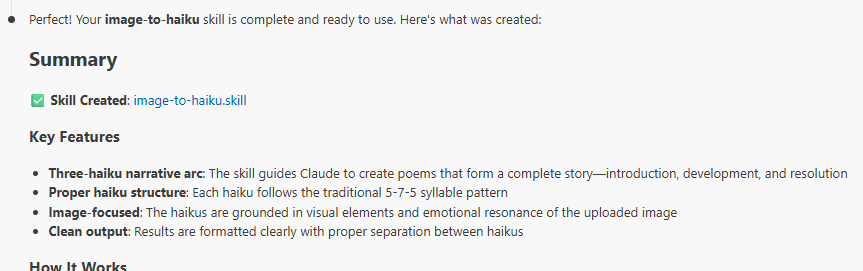
Now let’s see if we can trigger the new haiku skill using an image and context cues.
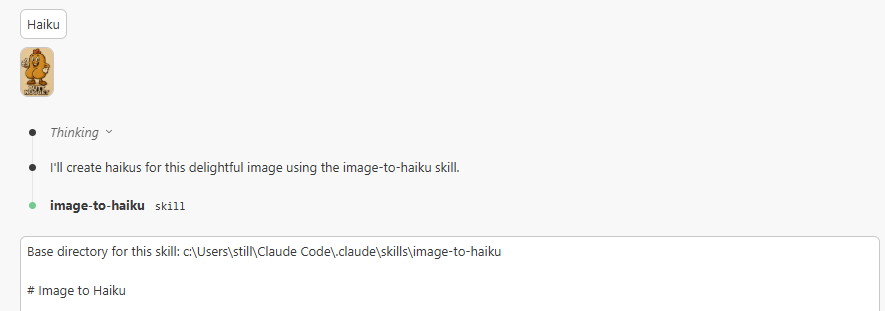
We’ll go with everyone’s favorite “Butt Nugget” that is definitely not a penis:

I dragged him into Claude Code, typed “haiku,” and Claude auto-invoked the new skill:
Here’s one of the takes:
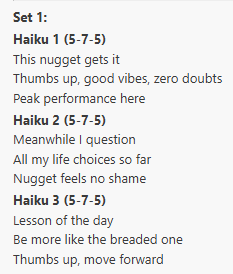
“Nugget feels no shame.”
Truer words have never been spoken.
If we can all agree on one thing, it’s that Butt Nugget don’t give a shit.
What Claude Skills will you make?
Now it’s your turn.
Get Claude Code to set up your “skills” folder, install the “Skill Creator” skill, and create whatever skills you need.
Here are dozens of ready-made skills to get you started:
I’ll be using Claude Code to create skills for each of my go-to custom GPTs.
How about you?
3. Using Claude Code with MCP servers
Skills tell Claude Code how to do a certain task.
MCP gives Claude the means to do it.
Here’s how:
What is MCP?
MCP stands for Model Context Protocol.
It’s an open standard that lets large language models communicate with third-party data sources and tools to “borrow” their capabilities.
Makers of digital apps or tools can create an MCP server to expose their app’s functionality for Claude Code to use.
For instance, by connecting Claude Code to Slack’s MCP server, you may grant Claude the ability to actually look through Slack messages and even post on your behalf.
So…how do you do it?
How to connect Claude Code to MCP servers
Note: I won’t be covering how to spin up your own MCP servers, as that’s both outside the scope of the article and way above my paygrade. Here, I’ll focus on connecting to existing remote MCP servers to grant Claude new abilities.
a. The official way
Now, if you want the “proper” way to link Claude Code to a third-party server, here’s the syntax Anthropic recommends for your terminal:
claude mcp add <name> --transport http <url>Let’s break this down:
claude mcp add: this is the command that tells Claude to add a new MCP server
<name>: this assigns a name of your choice to the connection4
--transport http: this tells Claude it’s a remote server5
<url>: this is the actual URL of the MCP server you’re linking to
So if I wanted to connect to Canva’s official MCP server, I’d type:
claude mcp add canva --transport http https://mcp.canva.com/mcpThat’s it.
b. The lazy way
Did I just hear you say, “Let Claude Code do it”?
See? That’s why they pay you the big bucks.
But yes: Much like skills, we can simply ask Claude to set up an MCP server for us.
Let’s go ahead and try it!
Prompt: Connect to the Hugging Face MCP server: https://huggingface.co/mcp?login
Claude Code takes care of the entire process in less than a minute:
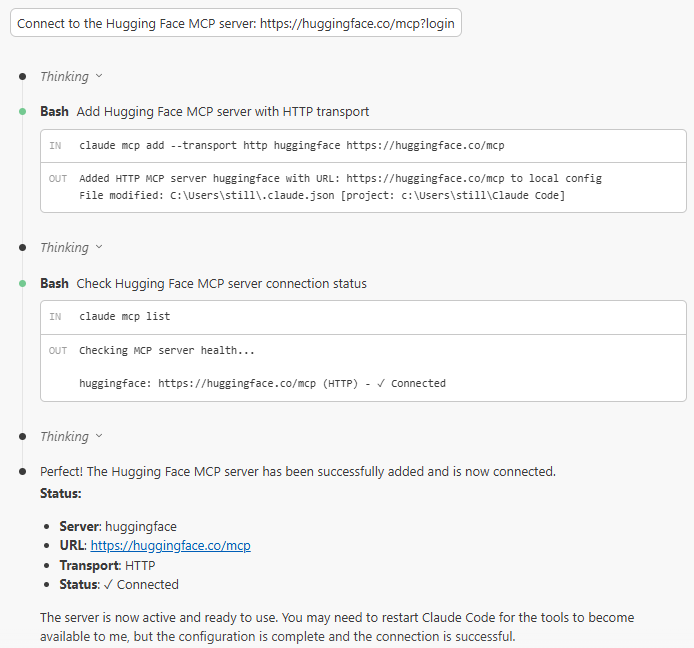
We’re now set up to search the Hugging Face database and pull model details.
How to use MCP servers in Claude Code
Note: Most MCP servers assume you already have an account with the related service. For instance, to use the Slack MCP server, you’d need to log in and authenticate with your existing Slack account.
Just as with skills, once Claude Code is connected to an MCP server, it will be able to use its powers when relevant.
Now that we have the Hugging Face MCP server connected, let’s try a random request:
Prompt: What are the most popular 3D models on Hugging Face from 2025?
Since Claude Code can now access the “Huggingface [model_search]” tool via the connected MCP server, it can perform a series of searches:
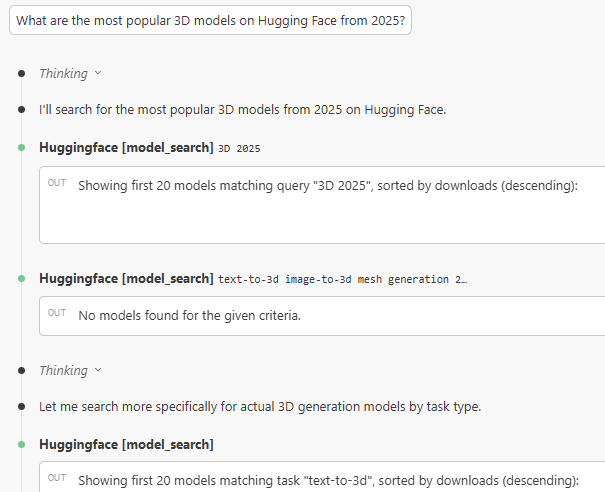
Soon, it provides me with the requested list, sorted by the number of downloads:
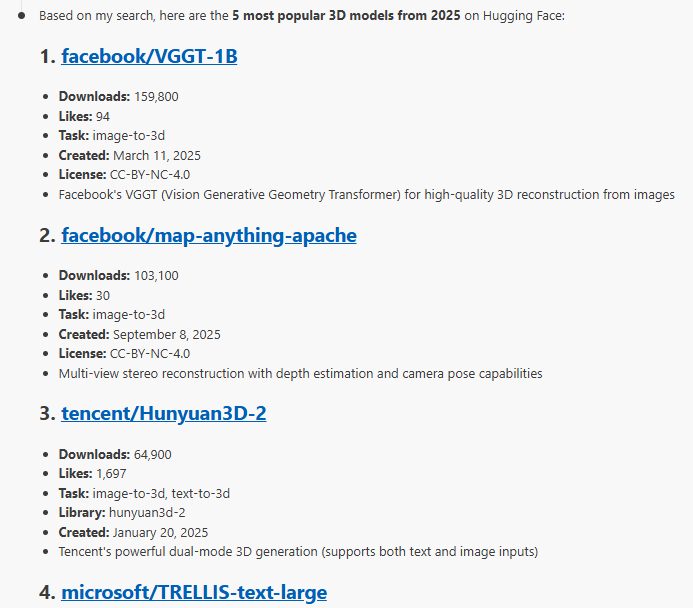
I didn’t have to explicitly mention the Hugging Face MCP server.
Claude Code knew exactly what tools to use.
Useful MCP commands for Claude Code
Here are a few MCP-related commands to use in your terminal:
claude mcp list: shows all of your currently connected MCP servers
claude mcp get <name>: displays details about a specific server
claude mcp remove <name>: disconnects from a specific MCP server
Where do you find MCP servers?
Even a simple search for “best MCP servers for [blank]” will return endless lists and directories.
But to get you started, here are a few solid options:
Here’s another thing to try: Ask Claude Code to recommend a list of relevant MCP servers, grounded in its knowledge of your projects:
Prompt: Based on our chat history and the content of my working folder, what MCP servers would be the most useful to my work?
Did Claude come up with any relevant suggestions in your case?
Skills + MCP servers = Match made in heaven
As we’ve learned, skills are great for codifying repetitive workflows and instructions, while MCP servers let Claude Code take additional actions.
But true magic comes from combining the two: Your skills can be told to call on specialized, skill-specific MCP servers to help Claude do its job better.
Think of it like this:
Skills teach Claude a recipe (ingredient list, cooking instructions, etc.)
MCP servers let Claude access the kitchen, utensils, and ingredients themselves
For instance, our hypothetical “Brand Deck” skill could incorporate an instruction that tells Claude Code to use Canva’s MCP server to create a new design and insert it into the final slide deck.
What skills and MCP server combinations will you build?
🫵 Over to you…
The poll tells me what. A comment tells me why. Let me know what works or doesn’t.
Thanks for reading!
If you enjoy my work, here’s how you can help:
❤️Like this post if it resonates with you.
🔄Share it to help others discover this newsletter.
🗣️Comment below—I love hearing your opinions.
Why Try AI is a passion project, and I’m grateful to those who help keep it going. If you’d like to support me and unlock cool perks, consider a paid subscription:
Anthropic even calls them out and includes standalone installation instructions.
See last week’s post for more on this.
After all, isn’t that why we installed Claude Code in the first place?
Normally, you’d give it a name that matches the tool. So if you’re connecting to Slack’s MCP, you’d name the connection “slack” (but you’re welcome to name it “butt-nugget” for all I care).
If we ran a local server, we’d use “stdio” instead of “http” here.
Dude … all this AND a honeybadger reference?! You may have peaked; banger post.
At your encouragement (and perhaps a few others) I got into it with Claude this week and had so much fun. Made a slap dash website (https://wirepinestage.com) and of course wrote about said fun. VS code next
This guide really digs into the practical aspects of using Claude Code effectively. The emphasis on skills and MCP is valuable.