

TL;DR
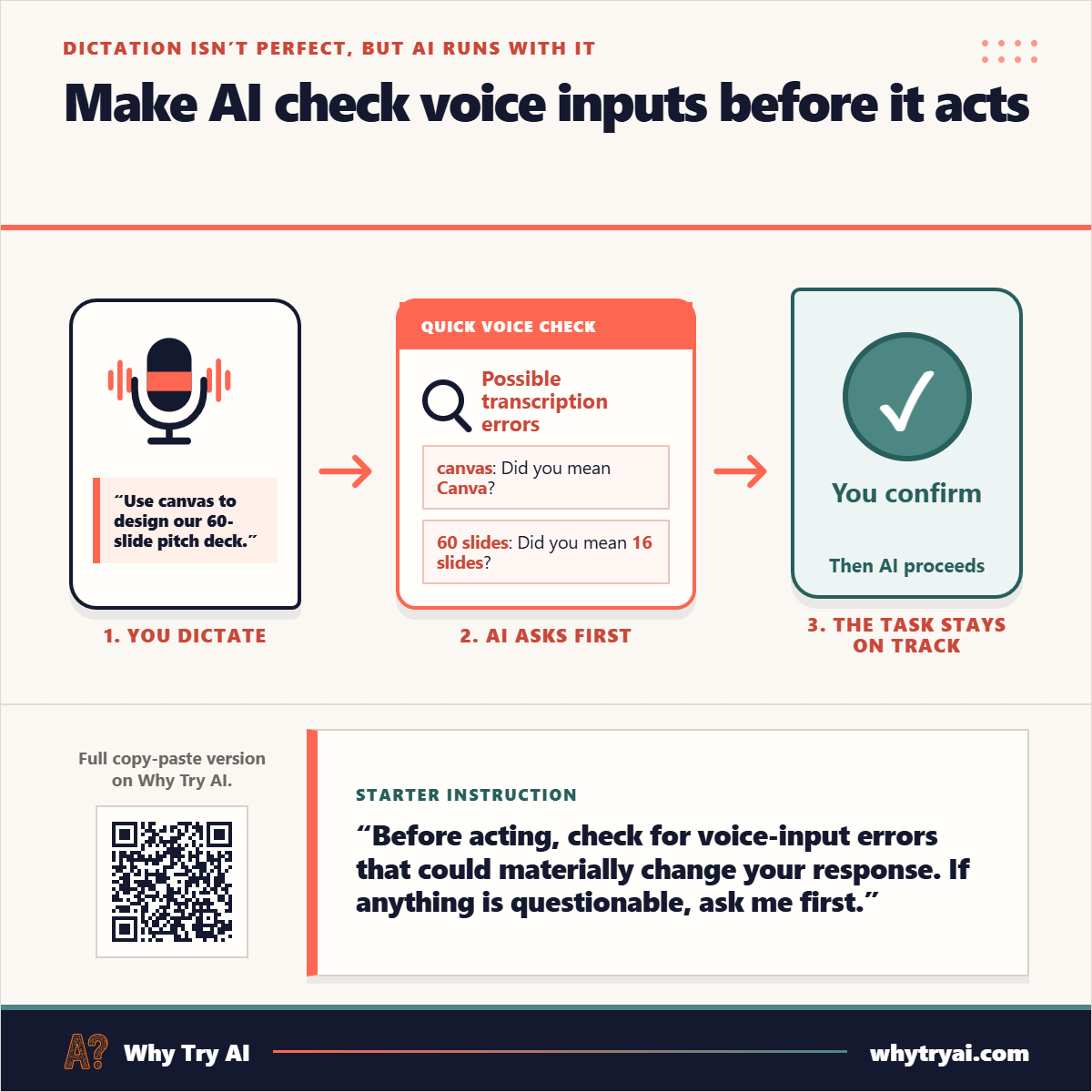
Voice dictation can get things wrong, and AI doesn’t challenge its mistakes. This instruction makes AI stop and check first.
The friction
Not so long ago, I was exclusively a “thinking through my fingers” guy.
Even though voice modes had existed for years, I kept on typing in all my AI requests.
(I still do all of my actual writing this way, but that’s another matter.)
But as I started working with desktop agents like Claude Code, voice input was suddenly no longer a nice-to-have. When you ramble freely, you can give the agent a lot more context and instructions in way less time.
Voice input is now my default for bigger tasks and projects when working with AI.
Desktop apps from both ChatGPT and Claude have built-in voice input buttons (as well as other underrated features):

Not only that, but Windows and Mac even have dedicated voice buttons that work in any tool, including AI chatbots and agents:
Windows default: Windows key + H
Mac default: Fn + Fn (double tap) or F5 (on newer models)
But I’ve noticed two things:
Voice input gets little things wrong, especially proper nouns or sound-alike words.
AI agents never question this input. They make assumptions about what you meant and run with those.
At first I thought this was just a minor nitpick, but as I started dictating longer paragraphs of unstructured thoughts, these kinds of errors compounded.
I had to constantly re-explain myself or correct the agent after it already did the work.
So I threw up my hands in exasperation, turned my face up to the sky, and yelled at the imaginary audience that lives on my ceiling: “There must be a better way!”
There was.
The fix
You’re probably familiar with third-party dictation apps that process and adjust your voice input before passing it on to the chatbot or agent. Some of them, like Voice Cursor, also let you use your voice to edit and fix errors on the fly.
Timely promo: Paid Why Try AI subscribers get 2 months of Voice Cursor Pro ($40 value) for free, so if you are (or become) one, you can test it out yourself.
But if you don’t want to invest in a dedicated speech-to-text tool, you can cobble together a workable solution using a prompt.
Paste this into your chatbot or agent before using voice input:
Copy-paste instructions:
I am using voice dictation.
Before acting, silently check for details whose wrong interpretation could materially change your response or action.
Pass silently:
Well-known names or terms with one obvious meaning in context.
Terms whose likely correction has already been confirmed.
Pause and verify:
Any first-use unfamiliar names or labels, even if they look plausible.
Any ordinary word with another plausible sound-alike meaning.
Any number, scope detail, decision, etc. with wording that has more than one plausible interpretation.
If verification is needed, do not begin.
Reply with a “Quick voice check” using whichever sections are needed.
“Unconfirmed terms”: **[term]** ([context]): Did you mean **[likely meaning]**? If you have no likely correction, write only **[term]** “Correct?”
“Details to confirm”: **[short label]:** [value] Only list potentially mistranscribed numbers, scope, or decisions. Never use this section to summarize the input.
Use one short bullet per item. Bold the terms being compared and the task-detail labels. Do not repeat the full input, add parenthetical context, or explain obvious details.
Finish with: “Correct anything I misunderstood, or reply ‘go’ to continue.”
If nothing needs verification, continue normally without mentioning the check.
Let’s see how this works in practice.
If I speak a two-paragraph brief into ChatGPT without this instruction, ChatGPT will happily just run with the task without pausing:

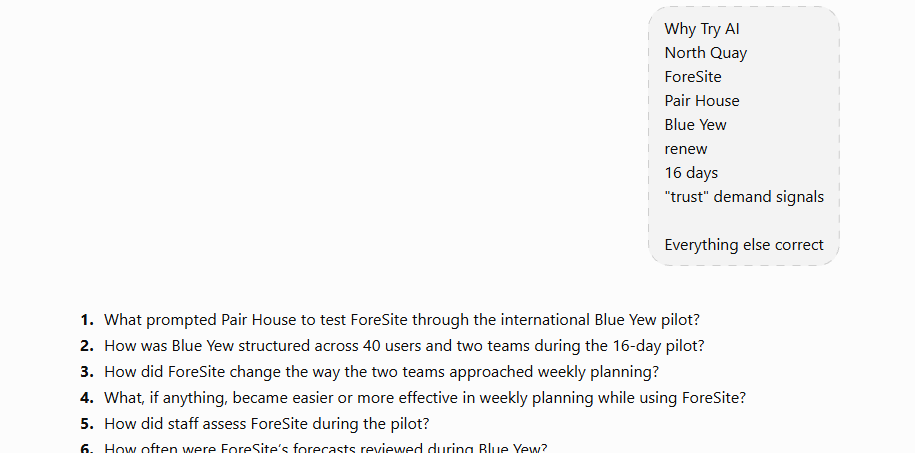
But my dictation is filled with proper nouns like company names, ambiguous sound-alike numbers (“sixteen” vs “sixty”), and other error-prone inputs.
ChatGPT doesn’t know these inputs were spoken, so it sees no reason to challenge them.
Now watch what happens if I first pre-prompt it with the “fix” above:
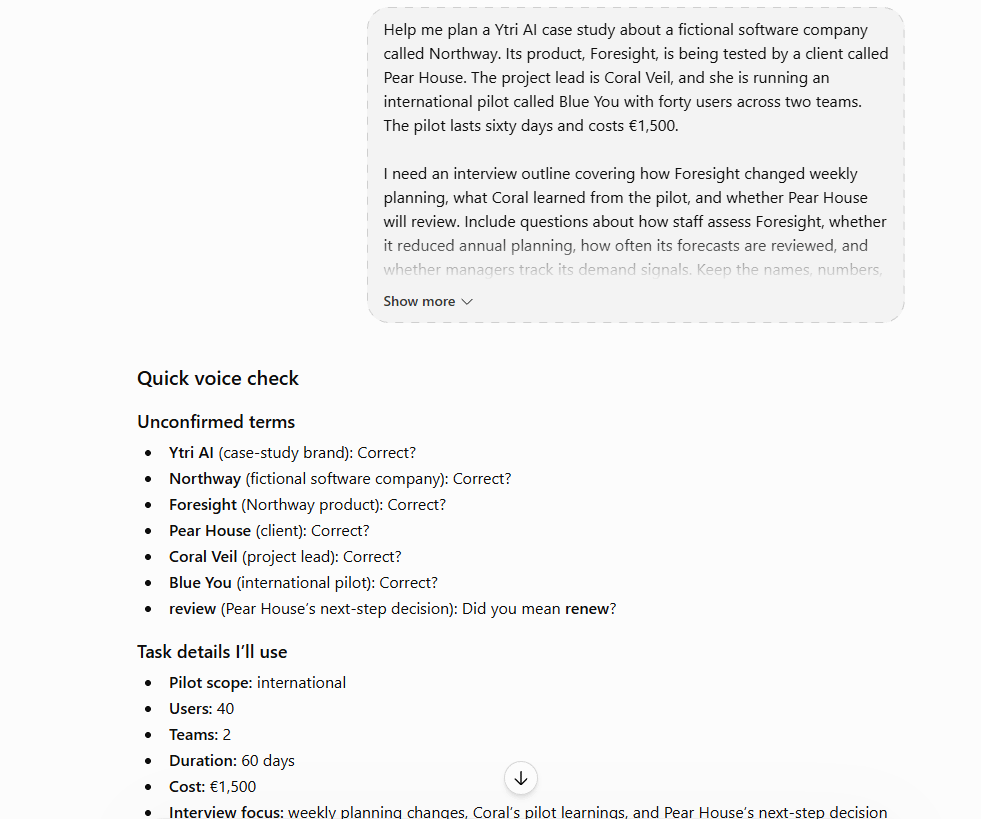
ChatGPT flags questionable inputs, so I can correct errors before it executes the task:
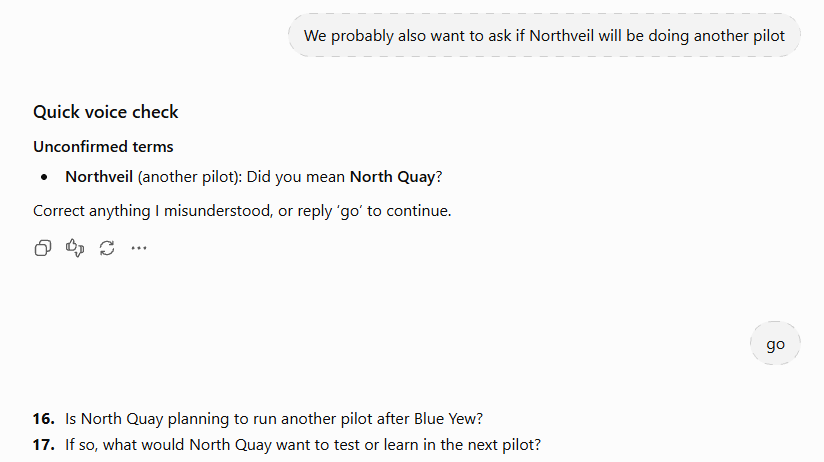
ChatGPT now knows the terms I’m using, so it can flag future mistranscribed variations:
This works with any AI chatbot or agent, but I strongly recommend using reasoning models at medium or high thinking levels to get the best results.
Do this now
Start a voice chat and ramble into the microphone for a few minutes.
Submit the resulting transcript to an AI chatbot and see how it treats the text.
Open a new chat, prompt it with the fix above, then paste in the same transcript.
Note how many assumptions and naming conventions AI now flags compared to the “vanilla” version in step #2.
Did this make a real difference, or was it largely irrelevant in your case?
Know someone who could use this? Share it!
Dig deeper [paid]
After I tested the hell out of the above instructions and tweaked them to my liking, I got a tiny bit carried away and ended up building two additional things.
1. “Voice mode” file
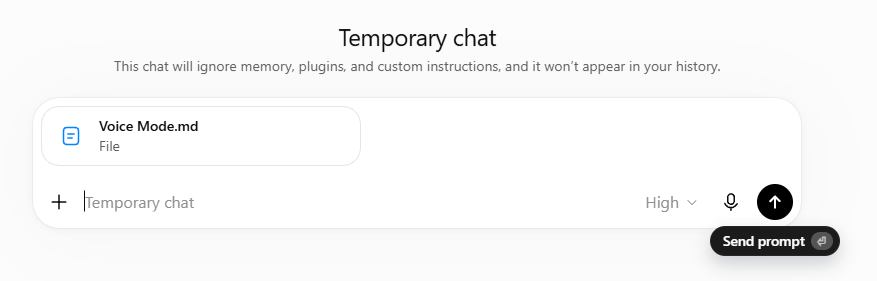
This is a Markdown instructions file you can upload into any chatbot, which unlocks the above “flag potential errors” behavior and includes two additional modes:
“Organize My Thoughts” mode that automatically picks the best way to structure your
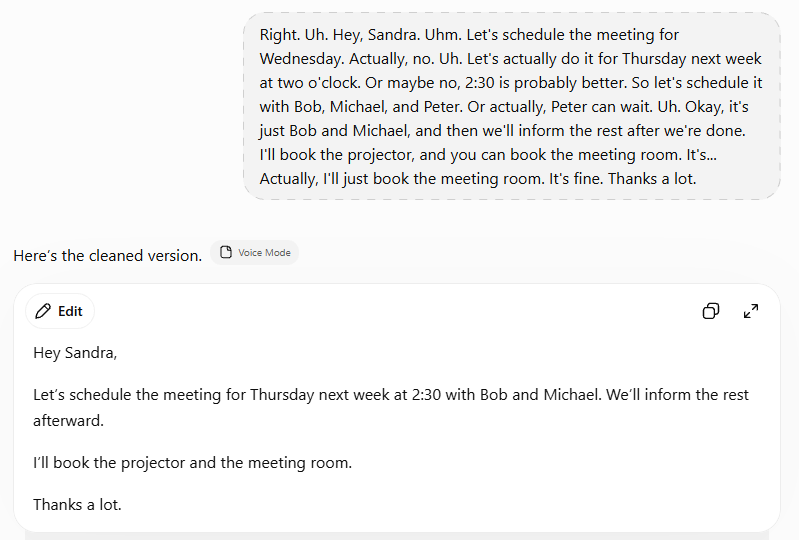
unhingedbrain-dump-style voice rambling:“Clean My Dictation” mode that takes in backtracking and other “I changed my mind” speech, cleans up filler words, and spits out polished drafts:
2. “Voice mode” skill for your AI agent

If you work with Claude Code, ChatGPT Work/Codex, or any other desktop agent, I also made a self-installing skill version.
The skill handles the same tasks as the Markdown file naturally based on what you request.
But because AI agents can take actions like editing files, the skill also comes with a whole bag of extra nifty features:
Corrections memory: The skill keeps a log of your corrections, so they carry across sessions.
Context awareness: If your existing project files mention specific names or details, the skill will proactively map closely matched transcriptions to them.
Risk-aware checks: The skill pays extra attention when certain details may trigger risky actions like editing a file, sending a message, and so on.
Retroactive fixes: If you fix an error, the skill proactively offers to change any previous work based on the wrong version.
Persistent preferences: If you tell it to e.g. format notes as bullet points, it’ll do it automatically from then on, even in new chats.
Cross-agent sync: Your corrections and preferences are saved in your workspace, so any other agent working in the same project can pick them up automatically.
If you’re a paid Why Try AI subscriber, you can grab both the Markdown file and the self-installing agent skill here:

Thanks for reading!
If you enjoy my work, here’s how you can help:
❤️Like this post if it resonates with you.
🔄Share it to help others discover this newsletter.
🗣️Comment below. I love hearing from my readers.
🔓Support me and unlock cool perks by going paid:
Could you also set up persistent memory so it does this every time, or can it not tell when you're dictating? I'm thinking it still might be the latter, but man they've gotta fix that. I use memory for all kinds of stuff like that so I don't have to remember all my own weird rules!
Will this work for the voices in my head?