

Paid subscriber perk: Grab the Claude Code Essentials pack with self-building skills, customizable workflows, and copy-paste starter prompts.
Despite Anthropic’s recent streak of self-inflicted oopsies, I still use Claude Code daily.
(Like many others, I’m hoping that the good old Opus 4.6 sticks around.)
But one thing that has clearly improved over the past few months is the native Claude Desktop app.
It now has many of the features you’d get from an IDE like VSCode, a built-in terminal panel, native voice dictation, and much more.
The desktop app has gotten so polished that it’s become the easiest way to work with Claude Code, especially if you’re a non-coder and/or brand-new to Claude Code.
So if you’ve ever been intimidated by the terminal before, you can now skip it altogether and jump straight into the app.
I’ve switched to the Desktop app for my Claude Code work and never reach for VS Code or the Windows Command Prompt these days.
So today I’d like to show you a few of the app’s underrated features and settings you might not know about.
Claude Code Series
Check out my previous Claude Code articles to learn how to:
Identify what Claude Code can help you with (and know how to ask for it)
Use Claude Code with Obsidian to set up your personal knowledge base
Test & improve Claude Code skills with Skill Creator and my “Eval Maker”
Make Claude Code work with other agents in a shared workspace
Use helpful Claude Desktop features in your Claude Code workflows (this)
Getting started with Claude Code on Desktop
1. Head to the ”Download Claude” page:

2. Grab the right desktop version for your operating system.
3. Install and launch the app.
The Desktop app splits your work into three tabs:
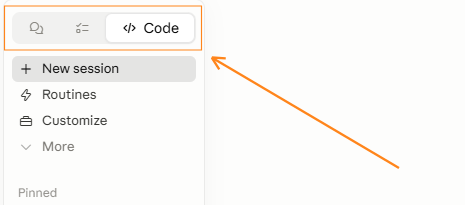
Chat: The classic chat interface you’d get on claude.ai, but on your local machine.

Cowork: Claude Code for white-collar work, mostly aimed at fire-and-forget autonomous tasks.

Code: The Desktop version of Claude Code. This is where I spend all of my time.
For the rest of this article, I’ll only be talking about the Code tab.
Select it in your Claude Desktop app, and you should see something like this:
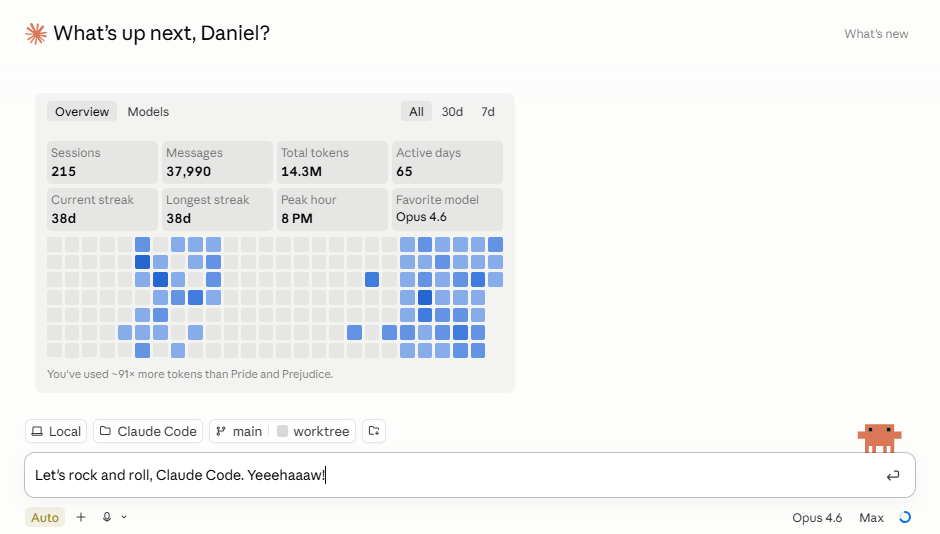
Type in your prompt to kick off a session, and you’re in business!
Now let me walk you through those underrated settings and features I’d promised.
Before your first session
Stuff you’ll want to set up before you kick off your first Claude Code session.
1. Enable remote control by default
Just a few months ago, remote control was a niche experimental feature for Max subscribers, and you had to manually invoke it for every individual session using the /remote command in the terminal.
Now, the Desktop app lets you switch it on for all sessions with a simple toggle.
Click on your profile in the bottom-left corner and head to Settings:
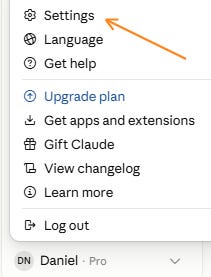
In the Claude Code tab, scroll down and toggle “Enable remote control by default”:

That’s it!
From now on, you can kick off a session on your computer and—as long as you keep the computer running—leave the house and continue that session from your mobile or even directly from claude.ai/code.
Here’s a demo session I just kicked off in the Desktop app:
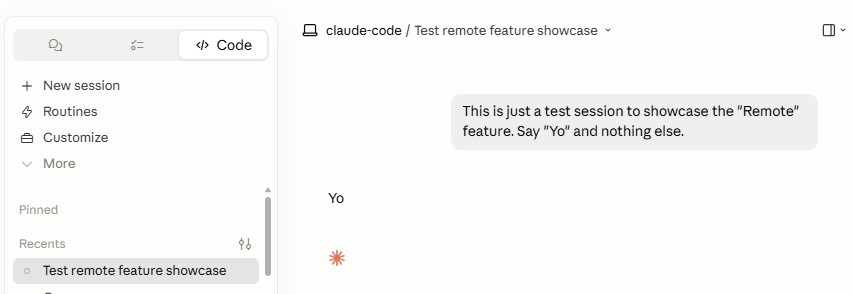
And here’s how it instantly appears on my smartphone:
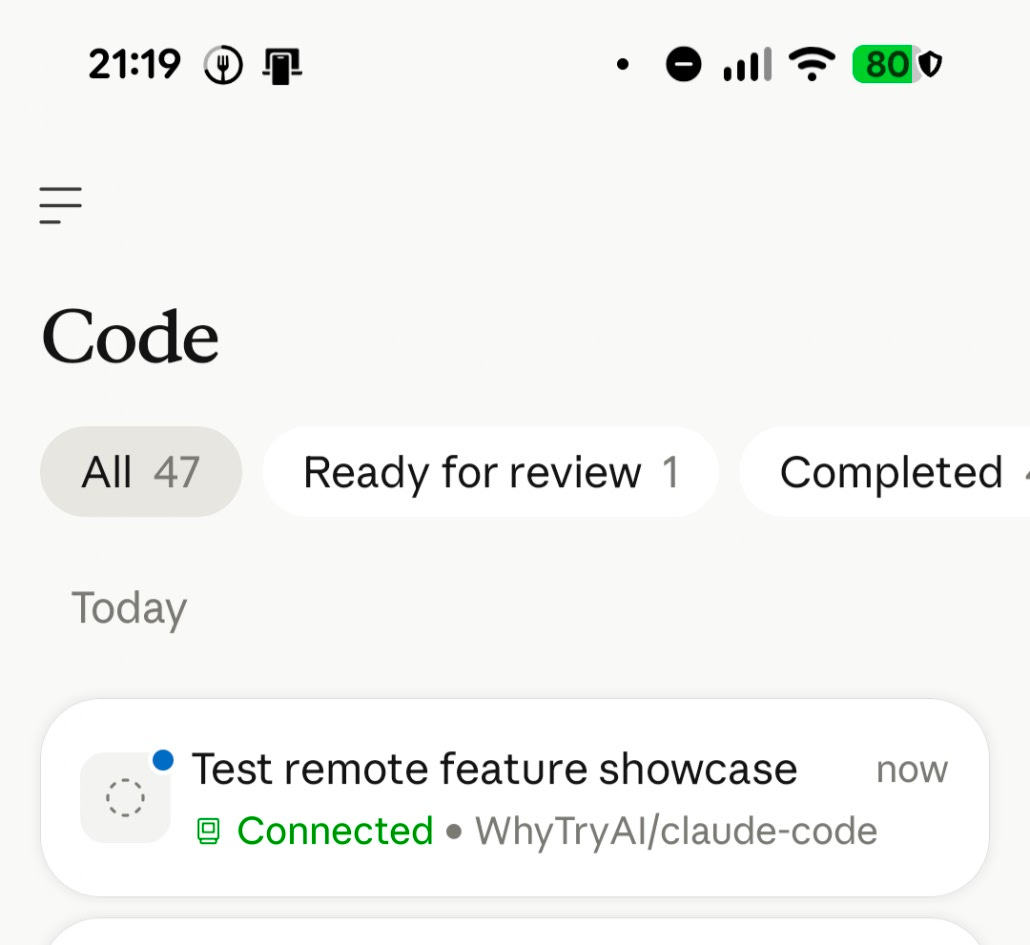
I can now get Claude Code to do stuff from wherever I am.
2. Select Auto mode for most chats
Until late March, Claude Code would by default ask you to approve every action it wanted to take on your behalf, from reading a file to scanning a folder.
On the upside, this prevented Claude Code from doing serious damage without you noticing. On the downside, you had to approve. Every. Little. Tiny. Damn. Thing.
In many cases, this defeated the entire purpose of having an independent agent, because Claude would simply stop working until you gave it your blessing to perform a quick web search.
The alternative was to either set up a list of pre-approved commands (manual fiddling + learning curve) or use the nuclear “bypass permissions” option (Claude formats your hard drive, empties your bank account, sends offensive emails to your colleagues, and rides off into the sunset, probably).

But now, we have the best of both worlds: Auto mode.
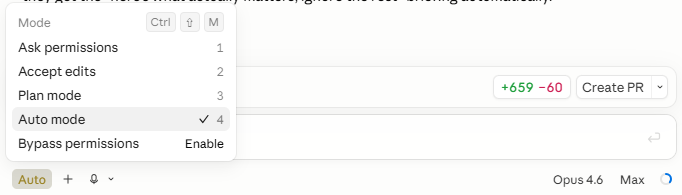
Auto mode independently analyzes whether a particular action might be destructive and automatically approves anything that it considers safe.
This drastically reduces the number of permissions Claude Code asks for while still limiting the most risky behavior.
To use Auto mode, simply select it in the dropdown under the prompt box:
Note: While Auto mode is a reasonable option for most of us, it does grant Claude a lot of leeway to make decisions. Using it doesn’t mean you should forego standard good practices like sandboxing and regular backups of anything critical.
While you work
Stuff you can use during each Claude Code session.
3. Cycle through different transcript views
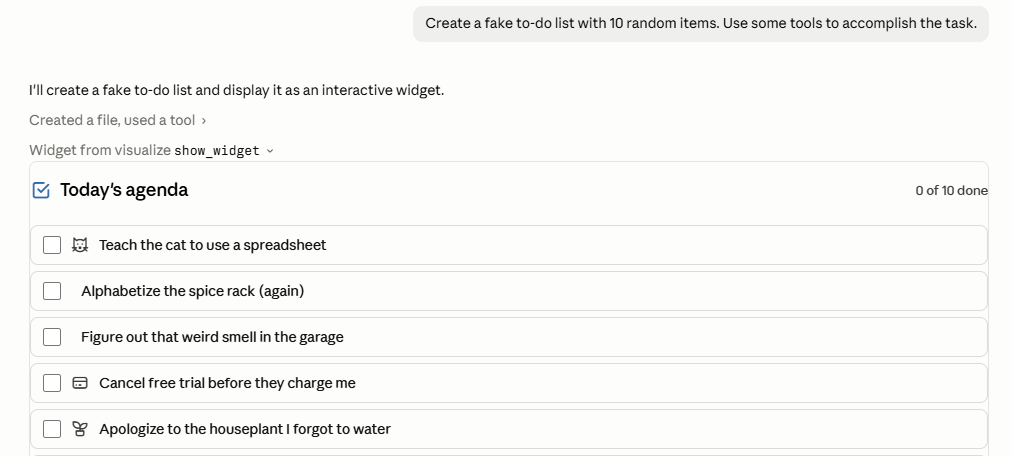
By default, your chats only display your own messages and Claude’s final answers or deliverables.
But you can ask to see more of Claude’s behind-the-scenes thinking and work.
To do that, click the top of your current session, scroll to “Transcript view” and pick one of four options:
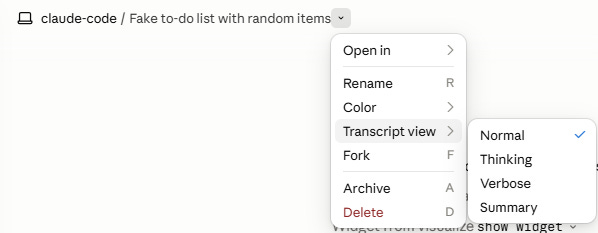
You can also use the Ctrl + O shortcut to cycle through these.
Here’s what the views do:

For instance, here’s how a conversation might look by default:
But here’s what happens if you go all out with the “Verbose” view:
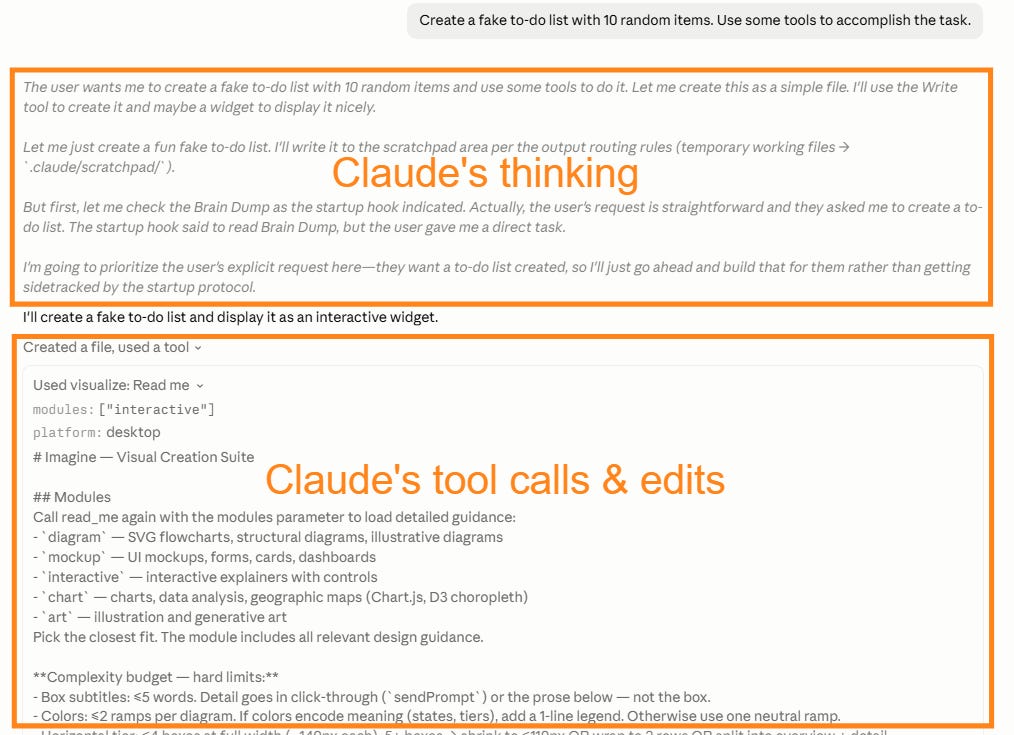
Clearly, “Verbose” is complete overkill for most regular chats, but it’s great for troubleshooting if something goes wrong and you need to see the detailed process.
The “Summary” view is a bit of a different beast. It summarizes the session’s purpose, current state, and outcomes, along with the last exchange between you and Claude:
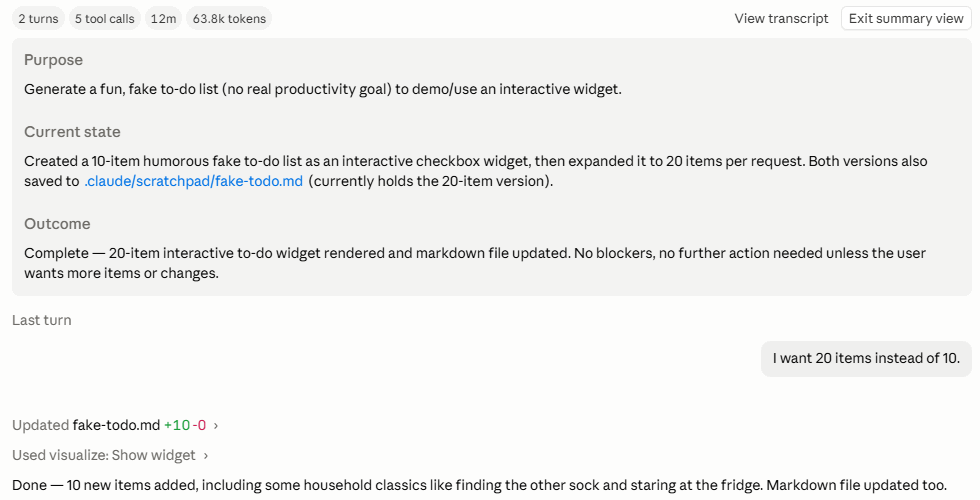
Use “Summary” if you’ve been away from a session and want to get up to speed.
4. View multiple chats side-by-side
Normally, if you click an existing session under e.g. “Recents,” that session takes over the current view inside Claude Desktop:
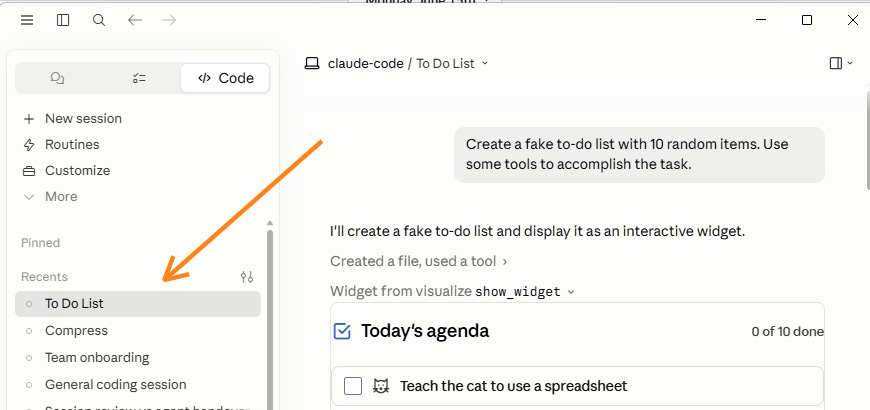
But if you hold Ctrl while clicking, the session will instead open in a separate pop-up pane. This way, you can have multiple conversations open at once:
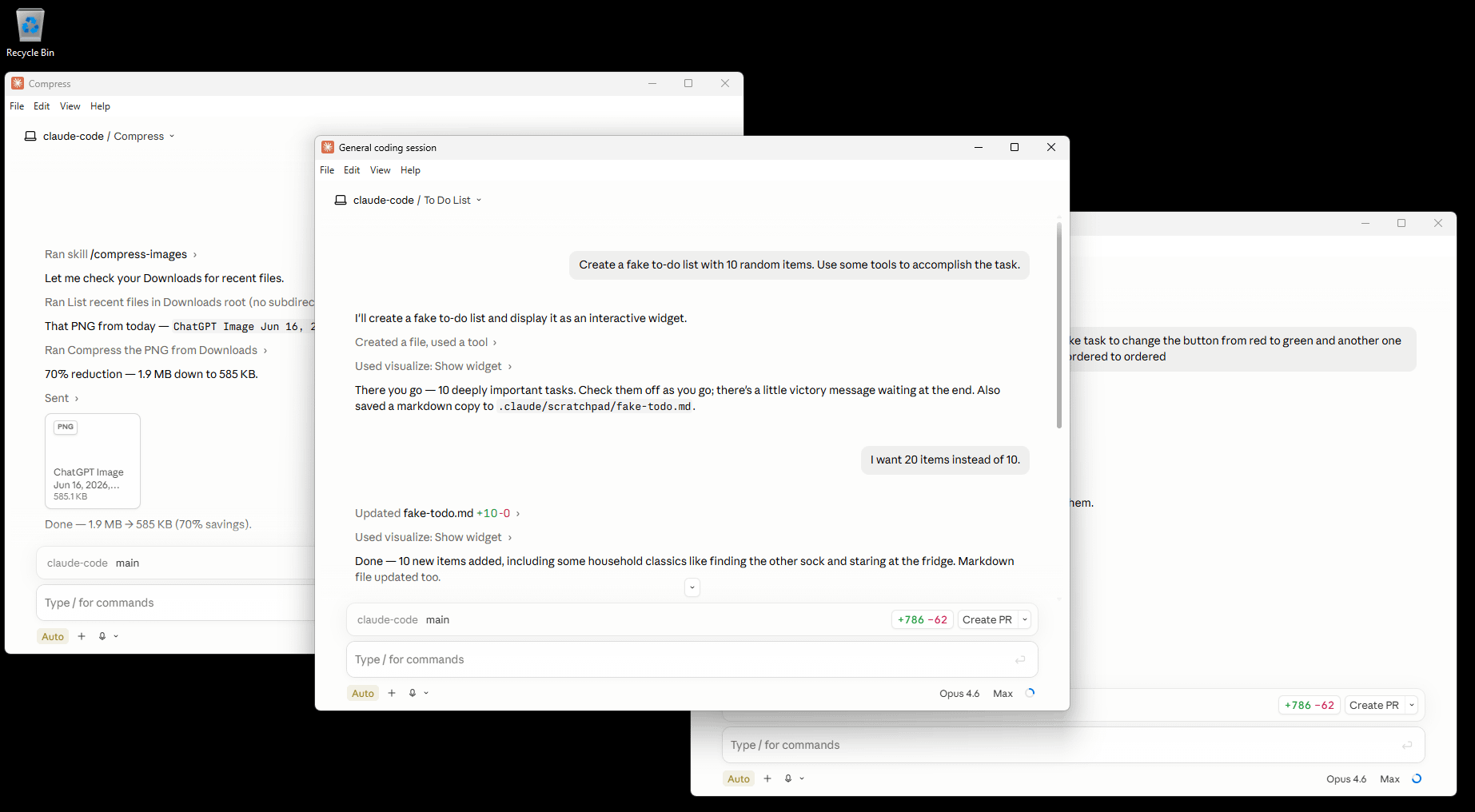
So if you’re working on several tasks at the same time, you no longer have to switch between them individually.
5. Use widgets for decisions and feedback
By default, when Claude needs input on a lot of things, it’ll present them as a long list for your feedback:
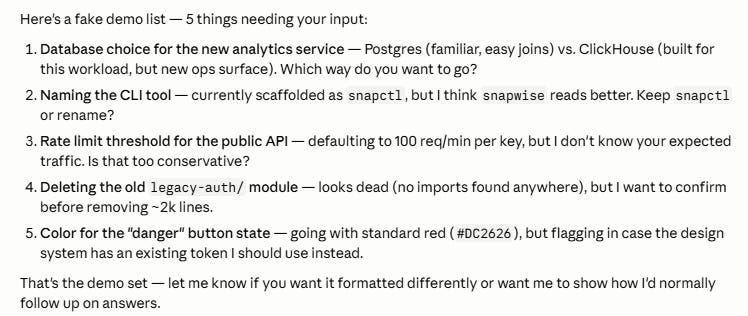
Normally, I’d respond with the corresponding numbers along with my decisions and explanations.
But for longer lists, this quickly becomes tedious and you can lose track of the question/answer pairs.
So nowadays, whenever Claude throws a long list of decisions at me, I type this:
Prompt: Present these in a widget with freeform fields for my input. Include your brief recommendations.
Here’s what Claude does in response to that:
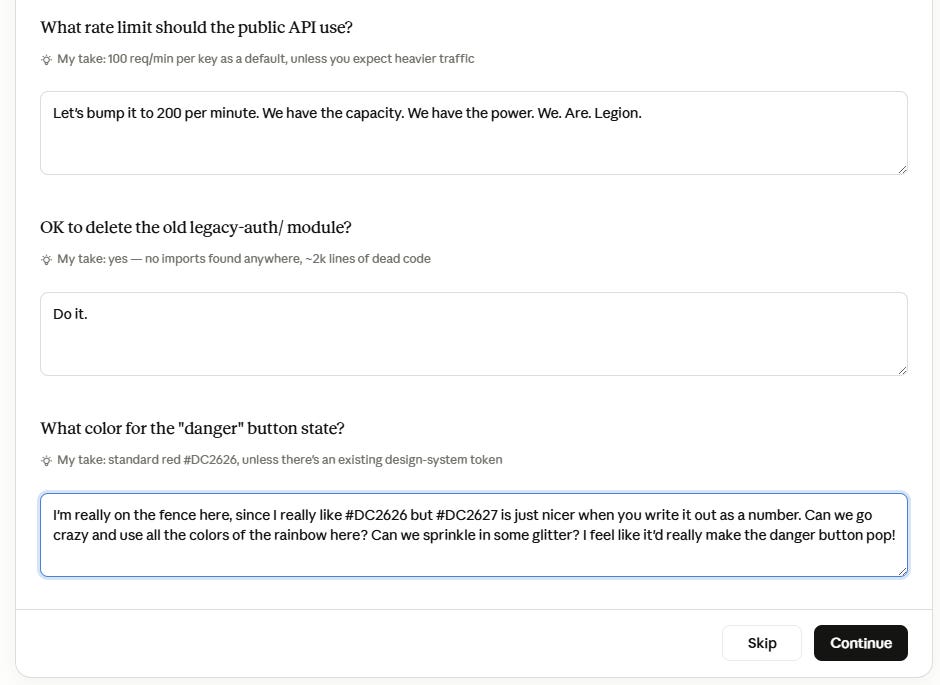
Now I can go through the list and respond to each point separately, with the right context in place. When I’m done, I click “Continue” and my responses get populated directly into the chat:

This is a much easier way to handle bigger sessions with multiple decisions and moving parts.
6. Use “/btw” for side chats
Sometimes, you might want to ask Claude a quick random question during a session.
Your typical options are:
Start a fresh chat (can be overkill for a short back-and-forth exchange)
Ask the question in the ongoing chat (pollutes the context with unrelated stuff)
Fortunately, there’s a better way, and it’s called the /btw command:
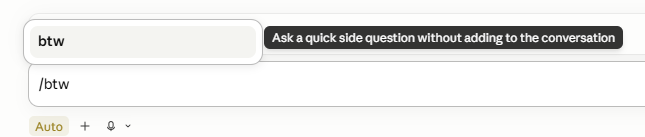
Type it within a WIP conversation, and it’ll create a separate “side chat” window:
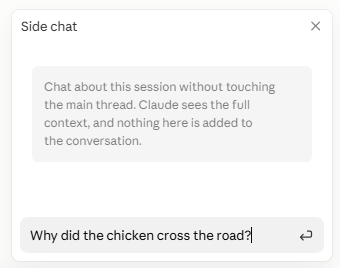
What’s cool is that this side chat is aware of your current session. So while it doesn’t add noise to the thread itself, it can discuss topics related to it:
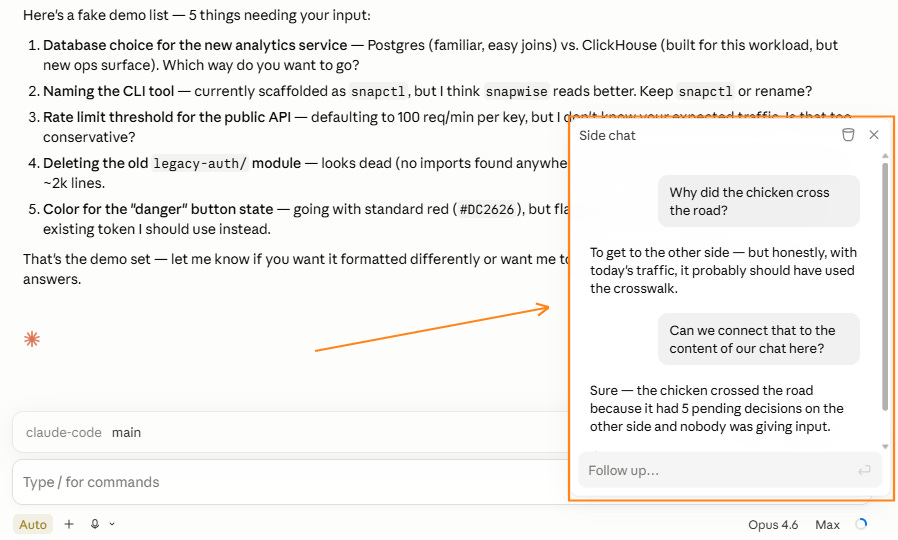
Perfect for quick asides and rabbit holes that don’t disrupt the main conversation.
7. Use task chips for side projects
On a related note, you can also splinter your work into separate chats.
If you stumble upon a minor fix or task that you’d prefer to solve outside the ongoing session, try this:
Prompt: Use spawn_task to create a task chip for [your task].
Here’s how that looks:
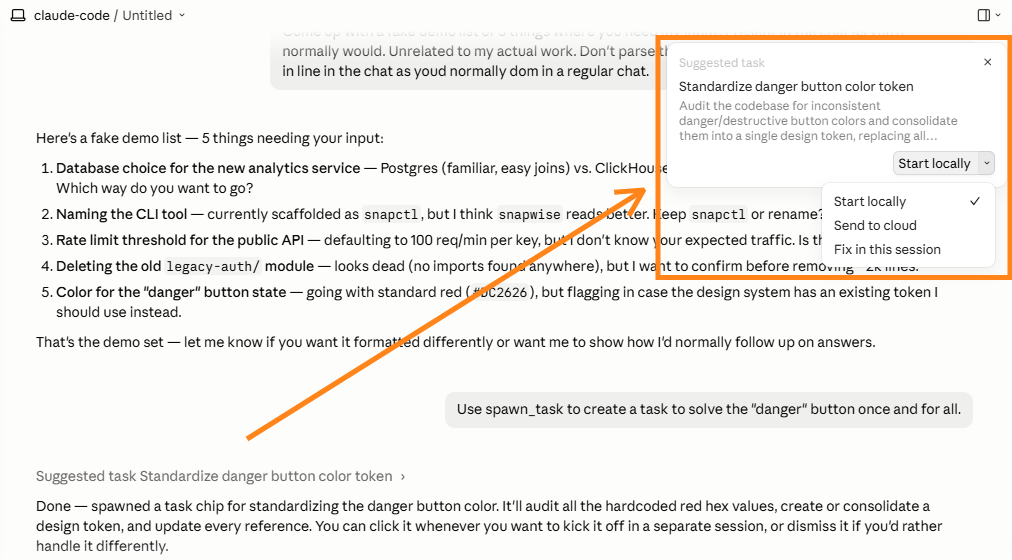
Claude creates the task spec that you can either send to a cloud agent or open in a new local session to handle separately from the ongoing chat:
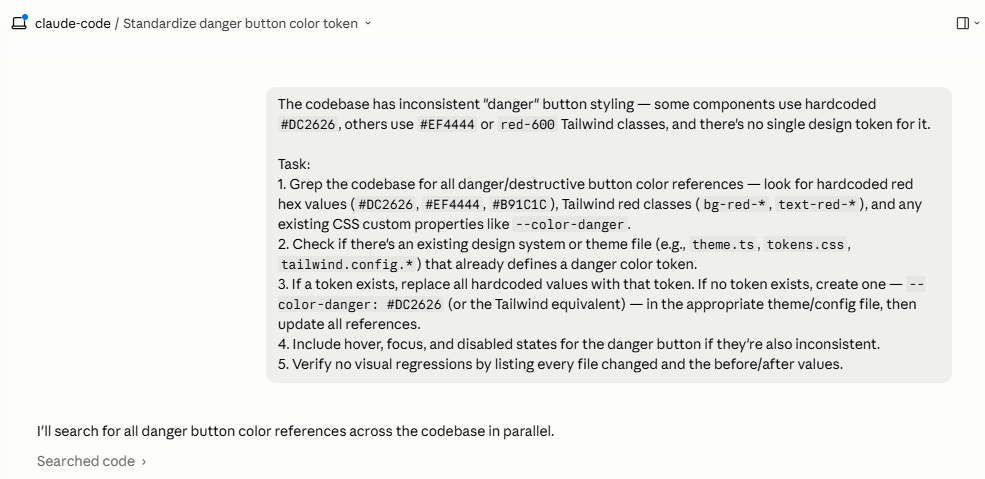
This keeps the main chat’s context clean while letting you deal with any roadblocks.
8. Explore branching paths with “/fork”
Claude may sometimes present several alternatives worth pursuing. If you want to explore each path without jumbling the chat context, you can use the /fork command:
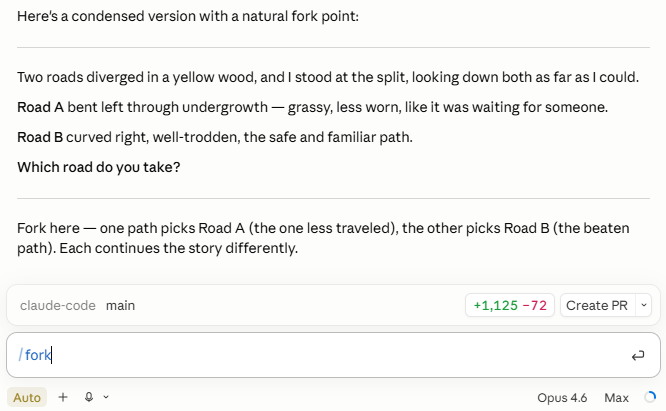
This creates a brand-new Claude chat with all the conversation history up to that point:
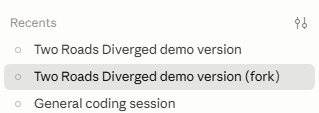
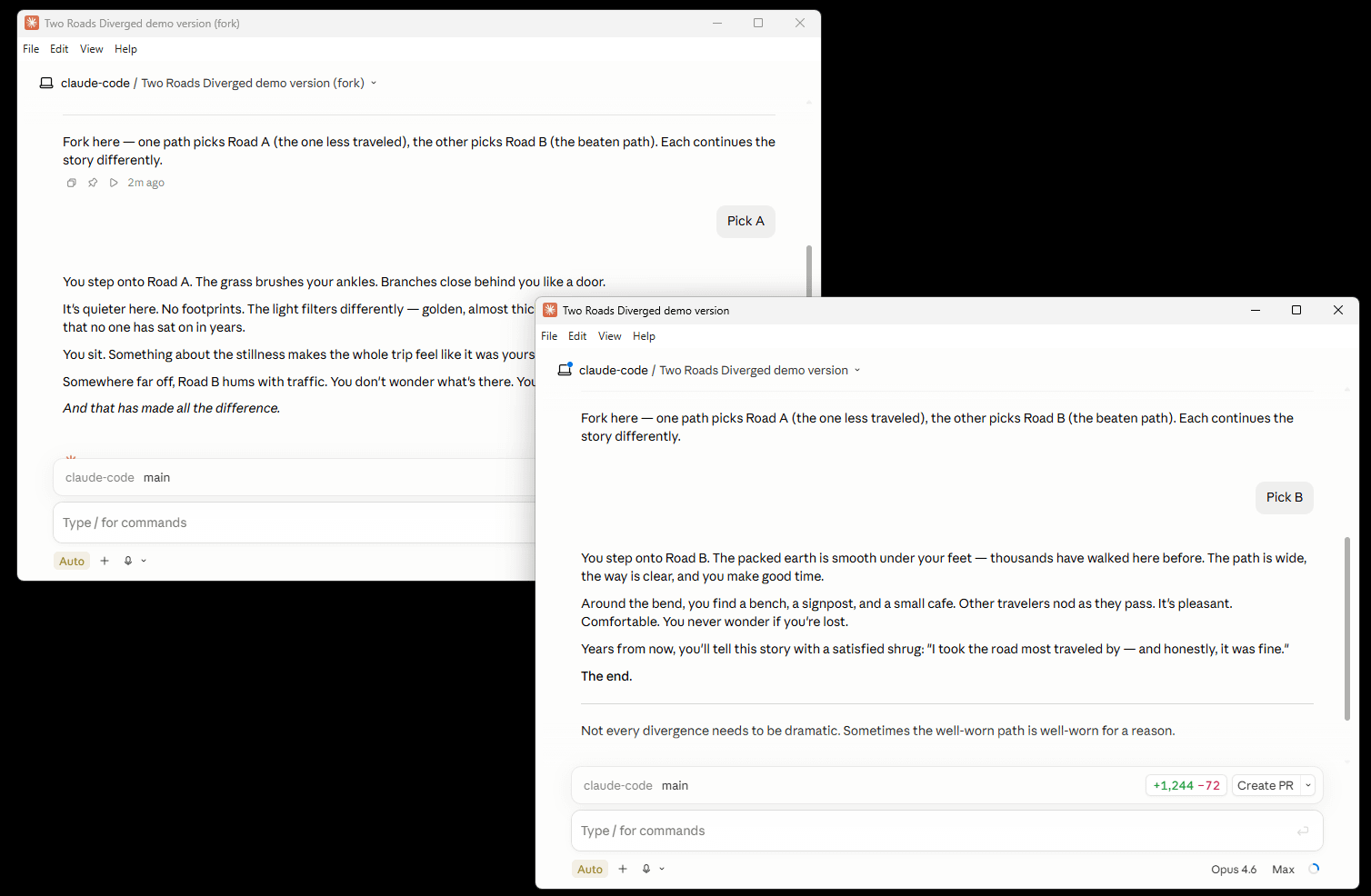
Now you can have your own “alternate history” rabbit hole by exploring different directions in parallel chats.
If you’re feeling fancy, you can even run them side-by-side using tip #4:
You can even do this with older turns in a conversation. Simply scroll back and hover over the point you want to branch from and click the “Fork from here” icon:
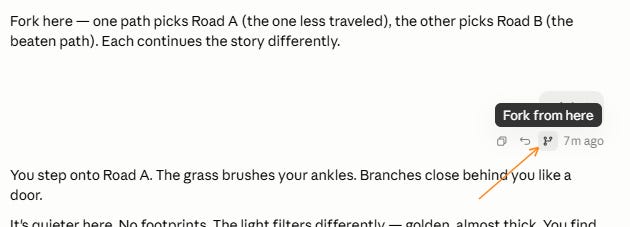
This will create a new session with all conversation up to that point intact and a clean slate after that.
9. Add instructions when using “/compact”
Claude has a limited context window of up to one million tokens, depending on your plan and settings.
As you chat, this context fills up. You can always check how much context you’ve used up by clicking the little circle icon under the chat:
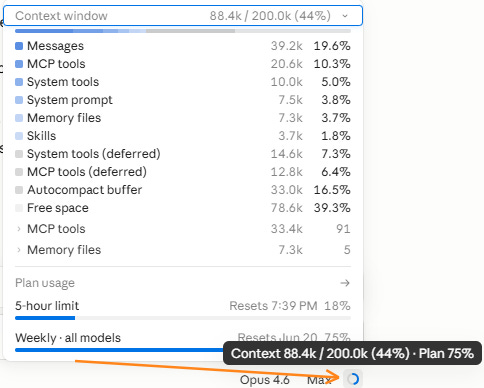
When the context is full, Claude Code will automatically compact the conversation to free up space. In practice, this means Claude will summarize the chat and key decisions, then wipe everything else.
While you can let Claude do the compacting, this has a few downsides:
There’s good evidence that a model’s reasoning quality degrades as the context fills up. Therefore, Anthropic recommends compacting the chat regularly.
By letting Claude compact the chat, you defer to its judgment on what details to save in the summary. It may well overlook something important.
As such, it’s a good idea to manually run the /compact command on a regular basis:

But here’s the cool part: You can also tell Claude exactly what details to keep when summarizing the chat by appending it to the /compact command:
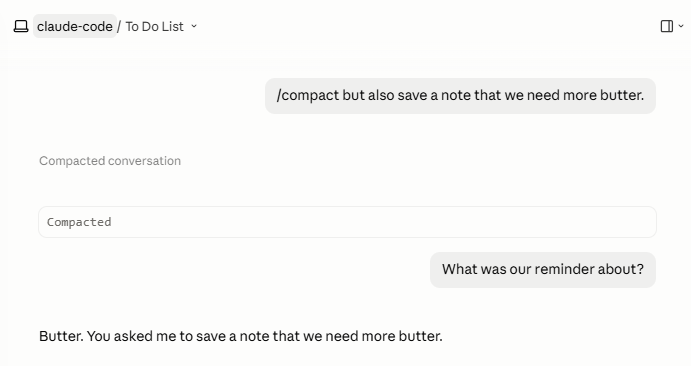
This gives you full control over what gets saved and makes sure Claude doesn’t wipe any critical insights or decisions.
After a few sessions
Stuff to try after you’ve worked with Claude Code for a while.
10. Understand your work patterns with “/insights”
If you’ve been using Claude Code for a few weeks or so, try the /insights command:

This analyzes your past sessions and identifies what’s working, what isn’t, and how you can improve the way you do things.
Here’s the opening “At a Glance” section based on my Claude Code habits:
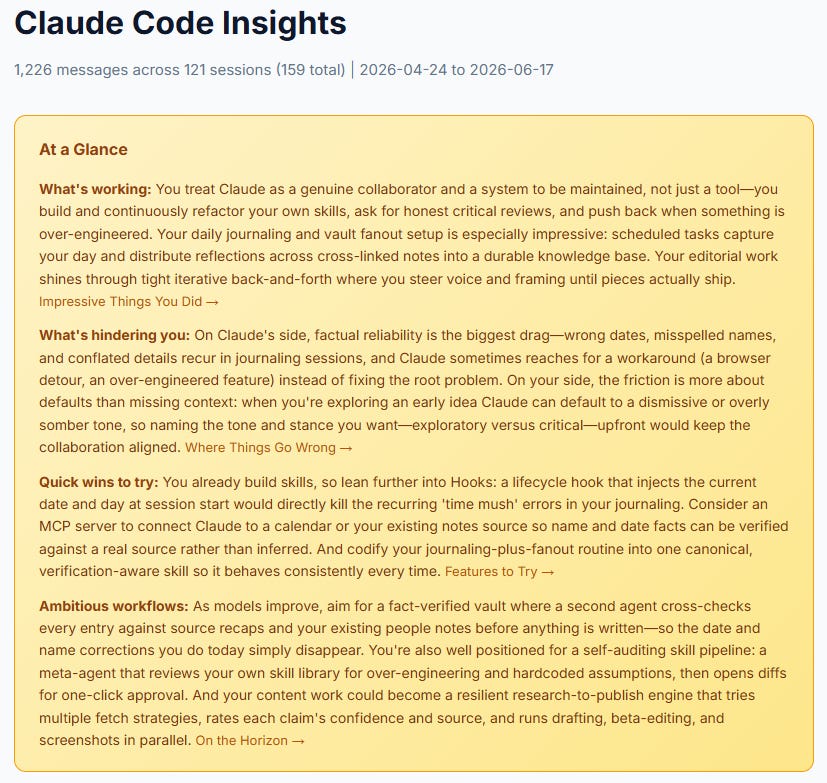
But the report goes much deeper than that and has the following chapters:
What you work on
How you use Claude Code
Impressive things you did
Where things go wrong
Existing CC features to try
New ways to use Claude Code
On the horizon
Each chapter contains paragraphs of insights, charts, and suggestions:
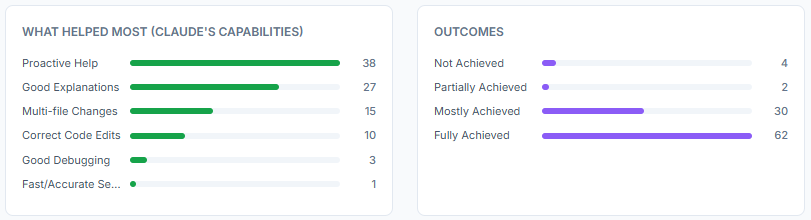
Run this regularly to spot your blind spots, understand your strengths, and discover new ways to use Claude Code for your specific needs.
11. Bring in other people with “/team-onboarding”
If you ever need to invite others to work in your Claude Code workspace, /team-onboarding is the command to use:

This scans the last 30 days of your Claude Code sessions and identifies the type of work you do, the skills and commands you use, and more.
It then asks you to correct any assumptions and provide starter tasks and tips for your colleagues:
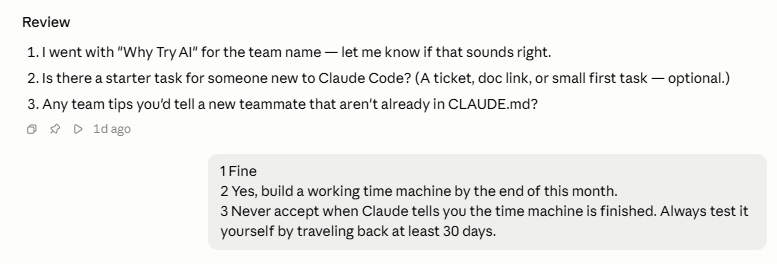
Claude will then generate an ONBOARDING.md file with all the relevant details:
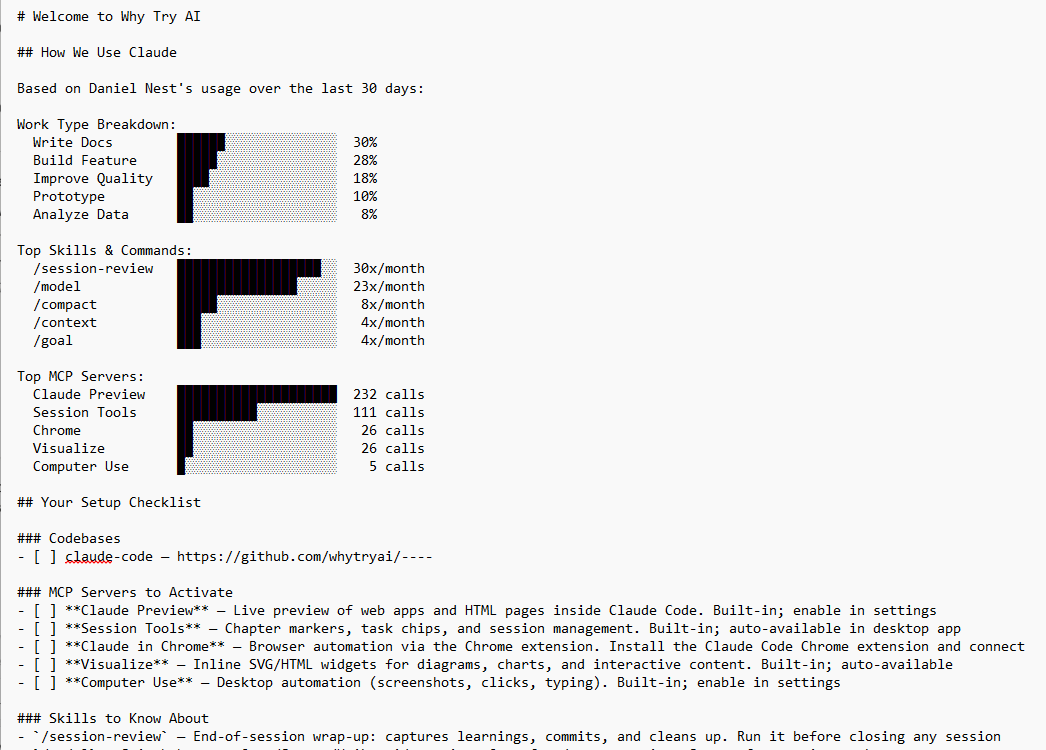
Your colleague can now paste the file into a fresh Claude Code chat of their own, giving Claude all the relevant details to be up and running.
📒 Downloadable reference sheet
Paid subscribers can grab these commands (+shortcuts, extra tips, and use cases) as a neat reference sheet here:

Thanks for reading!
If you enjoy my work, here’s how you can help:
❤️Like this post if it resonates with you.
🔄Share it to help others discover this newsletter.
🗣️Comment below—I love hearing your opinions.
Why Try AI is a passion project, and readers like you help keep it going. If you’d like to support me and unlock cool perks, consider a paid subscription: