

Paid subscriber bonus: Grab the Claude Code Essentials pack with self-building skills, customizable workflows, and copy-paste starter prompts.
Look, I wasn’t gonna get all fanboy about this.
I really wasn’t.
When I first wrote about Claude Code last month, I figured it’d be a one-off exploration.
But then something happened that—if I’m honest1—rarely happens with most AI tools I try: I started regularly using Claude Code in my daily life.
Like, a lot.
So much so that it’s now my primary driver rather than the usual ChatGPT Plus.

Because of this, I started wondering whether my current folder setup and the way I feed context to Claude Code are as good as they can be.
That’s how I eventually landed on concepts like “Personal knowledge base” (PKB) and apps like Obsidian.
Then I asked Claude Code to help me set everything up, and I now have a future-proof foundation for capturing knowledge and managing context.
Let me show you how you can do the same.
Claude Code Series
Check out my previous Claude Code articles to learn how to:
Identify what Claude Code can help you with (and know how to ask for it)
Use Claude Code with Obsidian to set up your personal knowledge base
Test & improve Claude Code skills with Skill Creator and my “Eval Maker”
Make Claude Code work with other agents in a shared workspace
Use helpful Claude Desktop features in your Claude Code workflows
Wait…doesn’t Claude Code already manage its own context?
It does.
I even said as much in my last article:
“But here’s one of my favorite things about Claude Code: Your entire working folder is the context. You don’t have to curate and upload individual files to separate conversations. Every new Claude Code chat has access to this full context by default.”
Out of the box, Claude Code already reads your files, saves stuff in MEMORY.md, and can create and edit multiple CLAUDE.md files to give itself additional context.
But there are a few things I’ve come to believe after digging into Claude Code tutorials and watching half the AI Internet2 lose its damn mind over OpenClaw:
Always-on, personal AI agents are coming: OpenClaw was a vibe-coded one-man project, with all the risks and rough edges that entailed. But it showed the industry that people are hungry for capable agents that take action proactively and can chat with you from just about anywhere. OpenAI already snatched Peter Steinberger (OpenClaw’s creator), so you best believe we’ll soon see official, polished versions of such agents.
“Your brain isn’t a filing cabinet”: In one of his many posts about Claude Code, Michael Crist said something I agree with: Our brains are built for having ideas and executing on them. Everything in between is busy admin work: color-coding your Trello boards, optimizing your tags, checking off to-do lists, shuffling tasks between “In progress” and “Done,” and so on. That’s why the concept of a self-maintaining personal knowledge base is increasingly fascinating to me.
Given this, I think it makes perfect sense to start building a standalone, organized context repository, untethered from any specific agent.
That way, whenever a new awesome agent comes along—OpenClaw 2.0, Claude Code Extra, Gemini Remote, whatever—I’ll have something I can point at and say, “Here, look, this is me and everything I’m working with. Let’s go!”

And that’s exactly where dedicated note-taking and personal knowledge management (PKM) apps can come in handy.
They supplement Claude Code’s “blind spots” quite nicely, because they are:
Agent-agnostic: Your knowledge is not locked into a specific AI tool and can be organized in a way that’s easy for any future agent to parse and work with.
Interconnected: Instead of fragmented subfolders and files, PKM apps create deep connections between different “objects” (people, places, etc.) spanning across multiple notes. Over time, this web of knowledge grows and becomes more meaningful.
Visual: Unlike Claude Code’s chat interface, you can surface PKM connections in a visual dashboard, giving you an at-a-glance view of how everything relates. Sort of like a map of your mind. A mind map, if you will. I should trademark that term.
Accessible on the go: PKM tools typically have dedicated mobile apps that also let you jot down quick thoughts wherever you are and sync directly to your database.
And that, kids, is why I decided to plunge myself straight off a cliff and into the PKM rabbithole. (That sentence sounded way better in my head.)
But why Obsidian, specifically?
I’ll be upfront: This isn’t the first time I’ve come across Obsidian.
Many people who work with code and knowledge organization swear by it.
So a while back, after hearing yet another recommendation, I gave it a try.
Here’s archive footage of how that went:
Don’t get me wrong.
Obsidian looked light, powerful, and flexible. I could see that, given time, you could build out a super comprehensive database of everything you ever needed.
It’s just that the process of creating all those notes and interconnections was exactly the kind of extra admin work I wanted to avoid.
But that’s exactly the point of this post: Obsidian isn’t for me.
It’s for Claude Code.
And as a tool for Claude to use, Obsidian is near-perfect:
First, Obsidian notes live in a local folder (or “vault”) on your computer. Place that folder inside your working folder, and Claude gets instant access to everything.
Second, Obsidian notes are Markdown files (.md). And guess what? That’s exactly what LLMs like Claude already prefer and use. Claude Code knows how to create, edit, and structure these.
Finally, Obsidian uses [[Wikipedia]]-style links to connect concepts across your notes, which are also trivial for Claude Code to work with.
It certainly doesn’t hurt that Obsidian is free, either.
That’s why I settled on Obsidian, but you might want to check out these alternatives:
Capacities (cloud-based competitor with a somewhat sexier UI)
Logseq (closest to Obsidian, works with local files, free and open-source)
Notion (requires quite a bit more legwork to hook up to Claude Code)
Here’s how to set it up
Honestly?
You can be up and running in just three steps if you want:
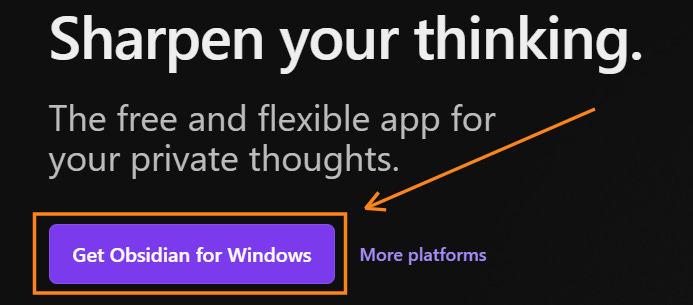
Step 1: Grab and install the Obsidian app (it’s 100% free):
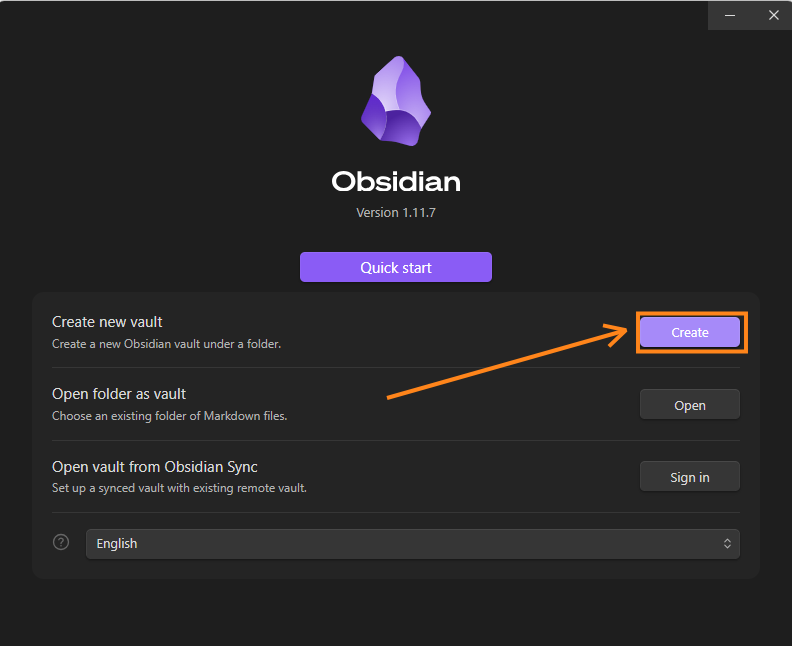
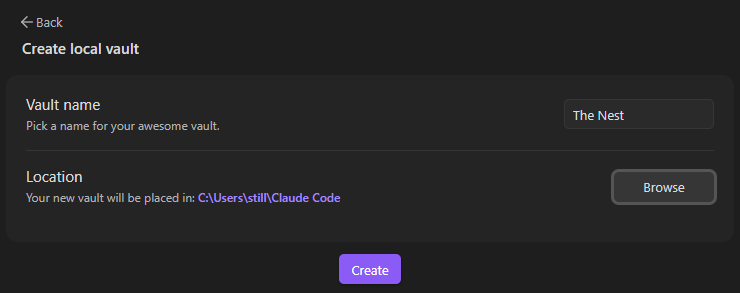
Step 2: Create your Obsidian vault as a subfolder under your Claude Code folder:
Mine looks like this, because of course it does:
Step 3: Ask Claude Code to set things up for you.
Once the vault is there, Claude Code can populate it with notes and structure everything for you, even if you’re starting from scratch.
Here’s a kick-off prompt you can use:
Prompt: I want to use Obsidian to help you and me better manage our context. The Obsidian Vault is here [FOLDER LINK]. Ask me about my goals, tasks, preferences, etc. to get this right. Ask one question at a time. If my answers lead to more questions, ask those one at a time as well. Continue until we are fully aligned. Look up best practices and guides for Obsidian + Claude Code that fit our specific needs. Once everything is clear, propose a new folder structure and starter files for me to approve. Then execute, creating new files and moving existing ones as needed.
I did something similar. Claude Code interviewed me, made a plan, and then built the entire first version:
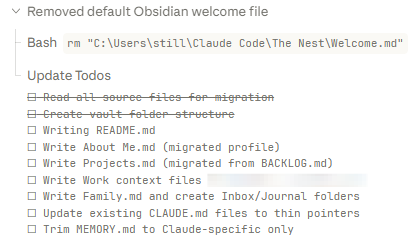
It can do the same for you, so you get a basic structure to work from.
Then, if you want to take things further…
Optional extras
My approach lets Claude Code tailor Obsidian to you and your life instead of trying to fit everything into an off-the-shelf framework.
But hey, maybe you love ready-made frameworks. I don’t know your life.
So here are a few optional steps (I’ll also show you how to make the Obsidian set-up self-sustaining and keep it fresh later):